
Cómo agregar la aplicación web a tu pantalla de inicio

Aprende a agregar la aplicación web a tu pantalla de inicio para acceder a ella de manera rápida y fácil.

Puedes añadir la Web app a la pantalla de inicio y abrirla con un solo toque. Requiere muy poco espacio de almacenamiento y ofrece acceso rápido.

Para agregar la aplicación web a tu pantalla de inicio en la computadora, toca el ícono «Instalar» en la barra de direcciones de tu navegador:
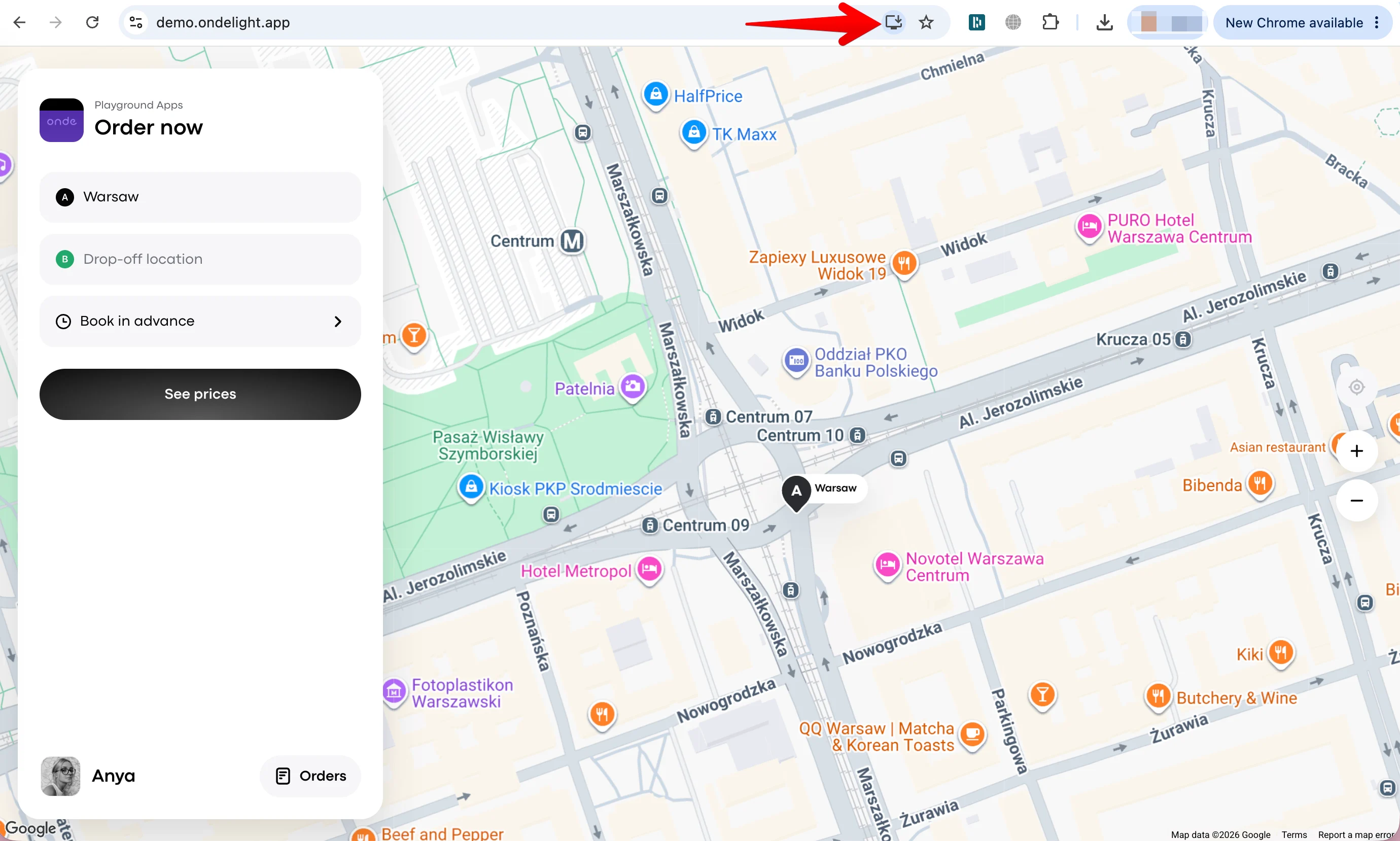
The Order now screen shows a Warsaw pickup map with drop-off and booking options; a red arrow points to the install icon in Chrome’s address bar. Visible: Order now, Warsaw, Drop-off location, Book in advance, See prices, Anya.

Para finalizar, haz clic en “Instalar” en la ventana emergente.
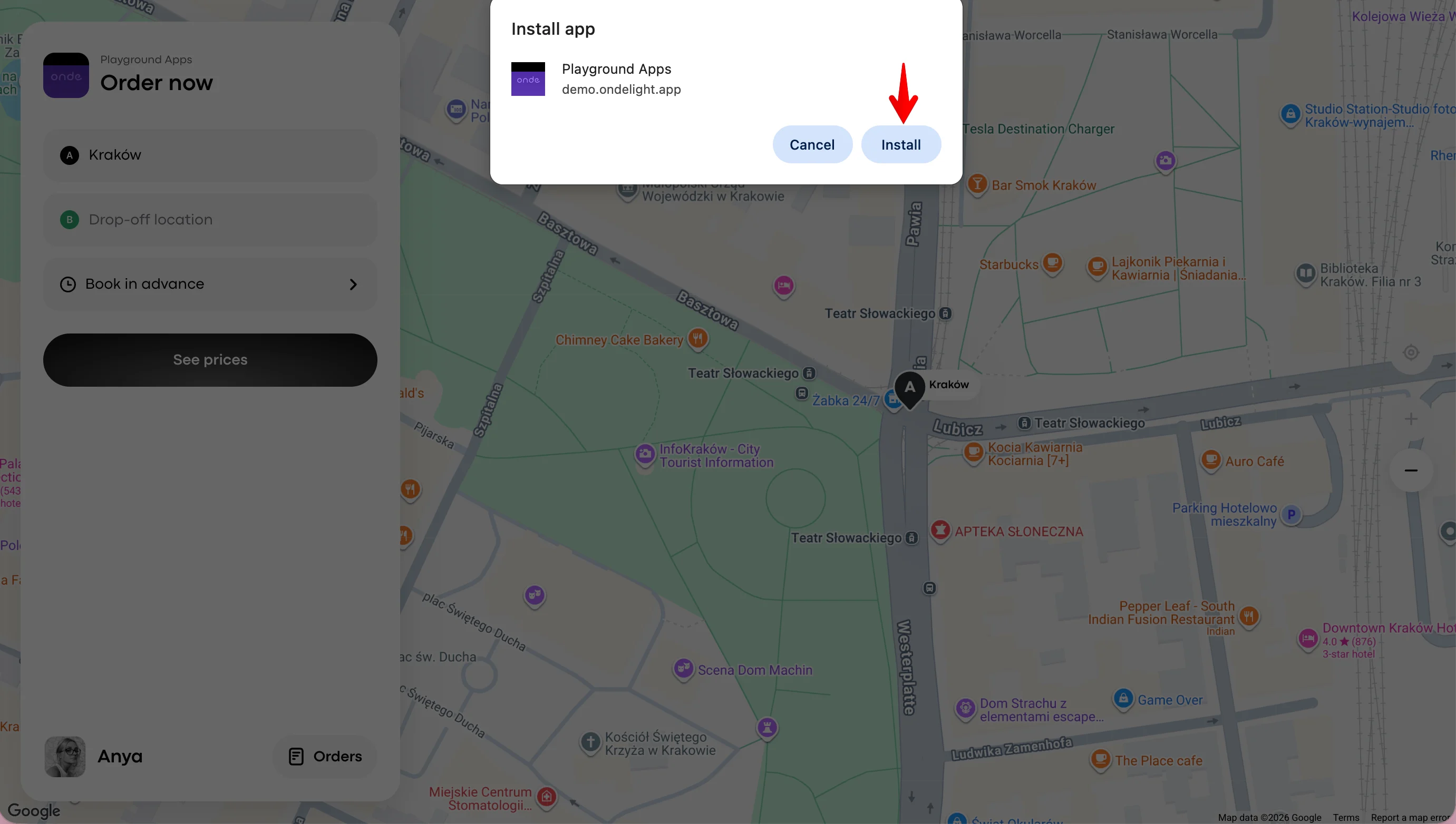
An Install app confirmation dialog for Playground Apps appears over the Order now map screen, with a red arrow pointing to the Install button. Visible: Install app, Playground Apps, demo.ondelight.app, Cancel, Install, Order now.

¡Listo! Ahora el ícono de la Web app está en tu pantalla y puedes abrirla con un solo clic.
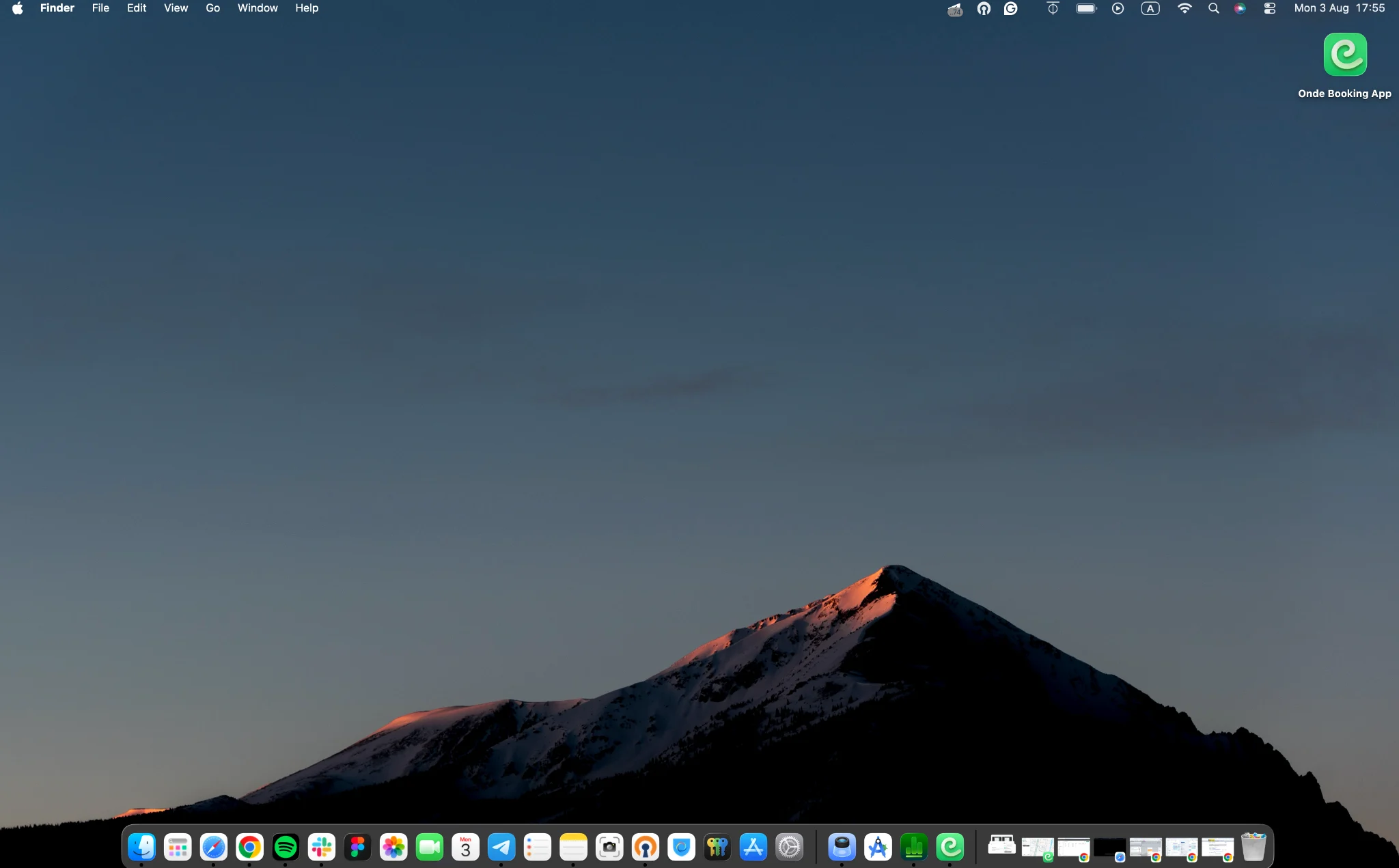
macOS Finder desktop with the Onde Booking App icon at the upper right and the Dock along the bottom. Visible: Finder, File, Edit, View, Go, Window.

¡Descubre lo fácil que es agregar la aplicación web a la pantalla de inicio de tu dispositivo móvil!
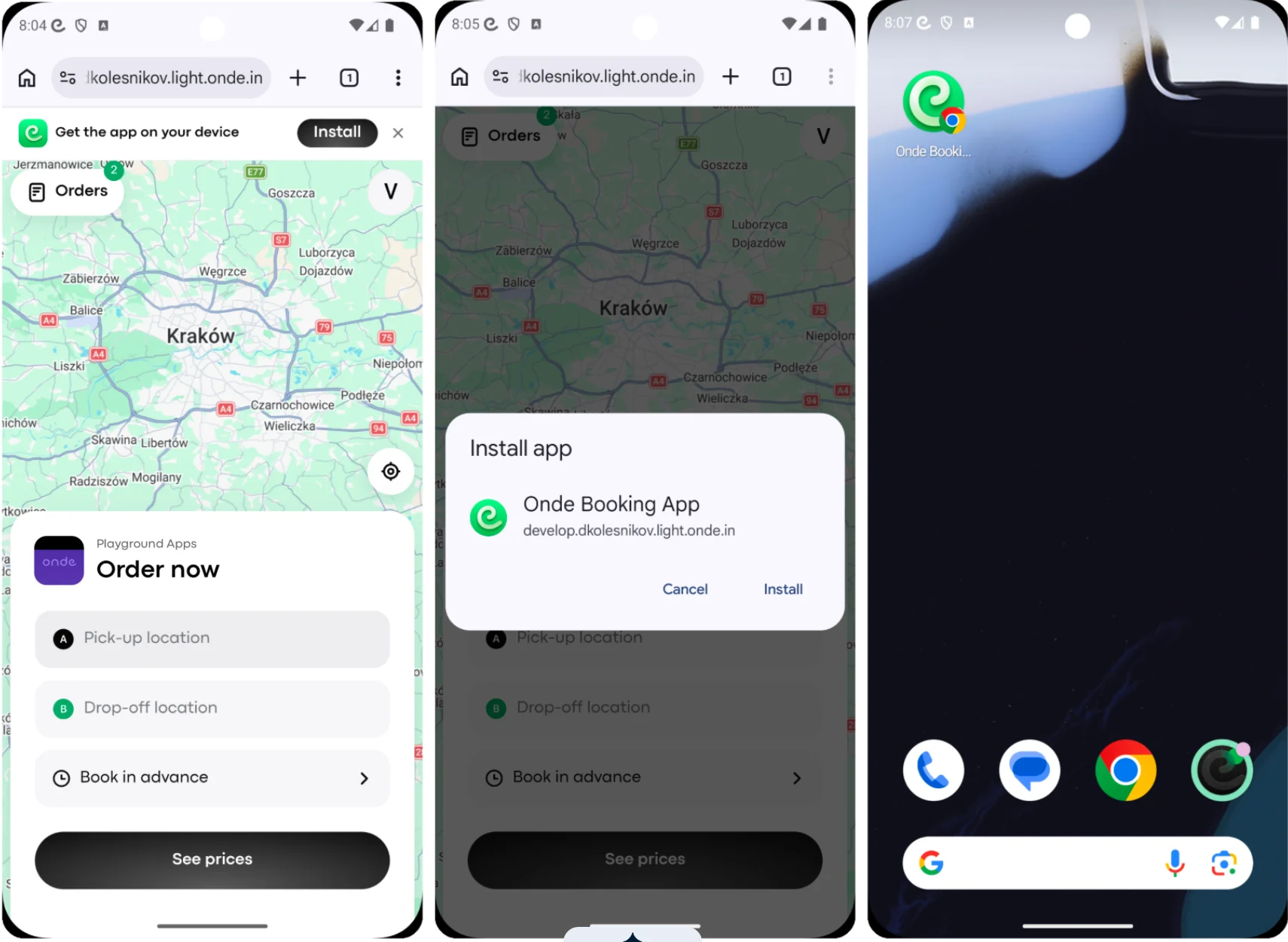
Three phone screens show the Onde Booking App installation flow: a booking map, an Install app confirmation dialog, and the Android home screen with the app shortcut. Visible: Get the app on your device, Install, Orders, Order now, Pick-up location, Drop-off location.

¿Te ha ayudado esta respuesta?
😞
😐
😁