company logo

Onde.Light Help Сenter

Go to Onde.Light
Terms & ConditionsPrivacy policy
All collectionsWeb booking appHow to create a pre-order in the Web booking app

How to create a pre-order in the Web booking app

Learn about creating pre-orders in Web app.

Schedule rides in advance easily through the Web app.

1. Go to Web app and enter your pick-up and drop-off locations. Below, you will see the Book in advance option. 
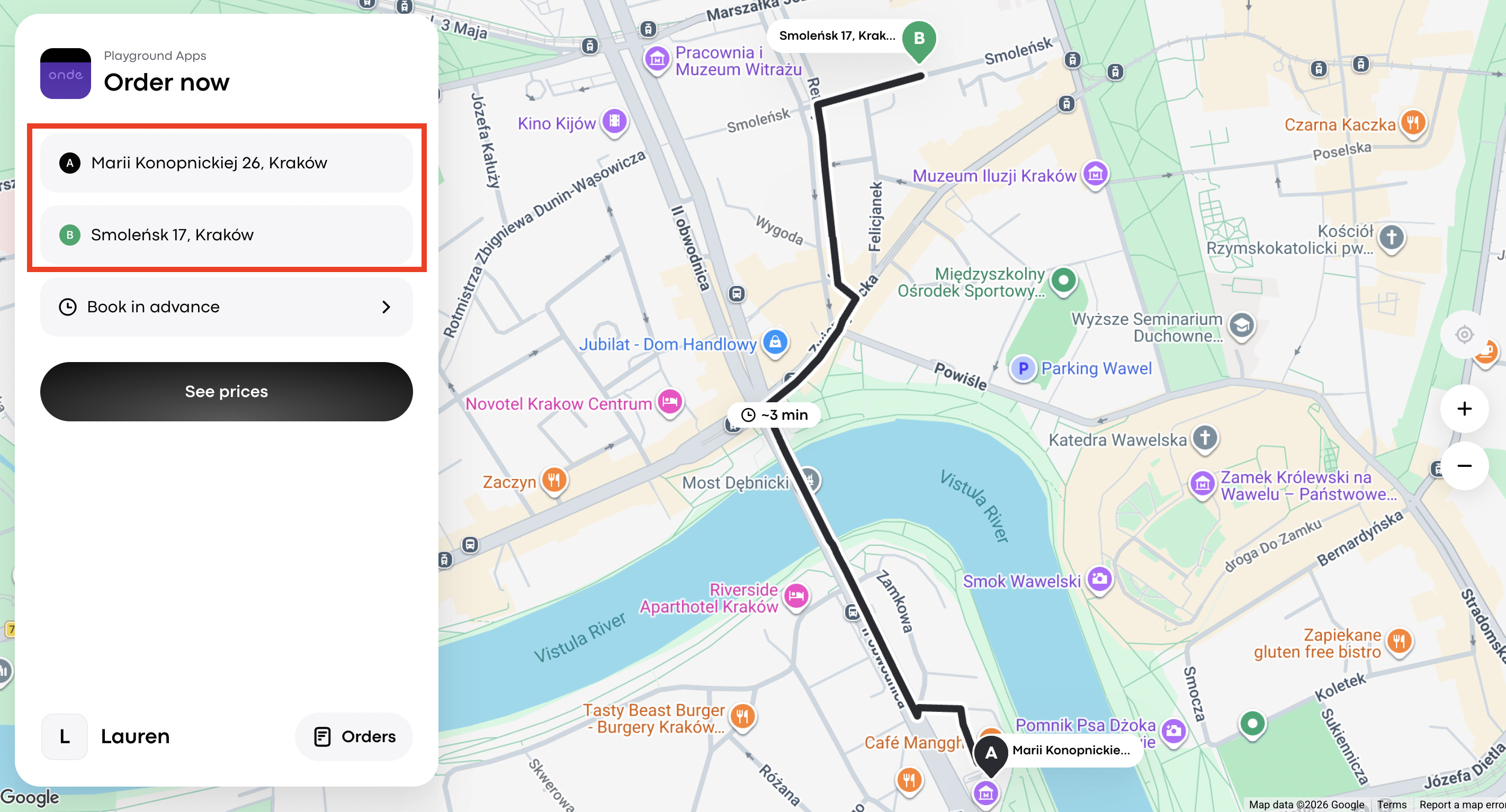
2. Click on Book in advance and set the preferred date and time for the pick-up. Click Continue.
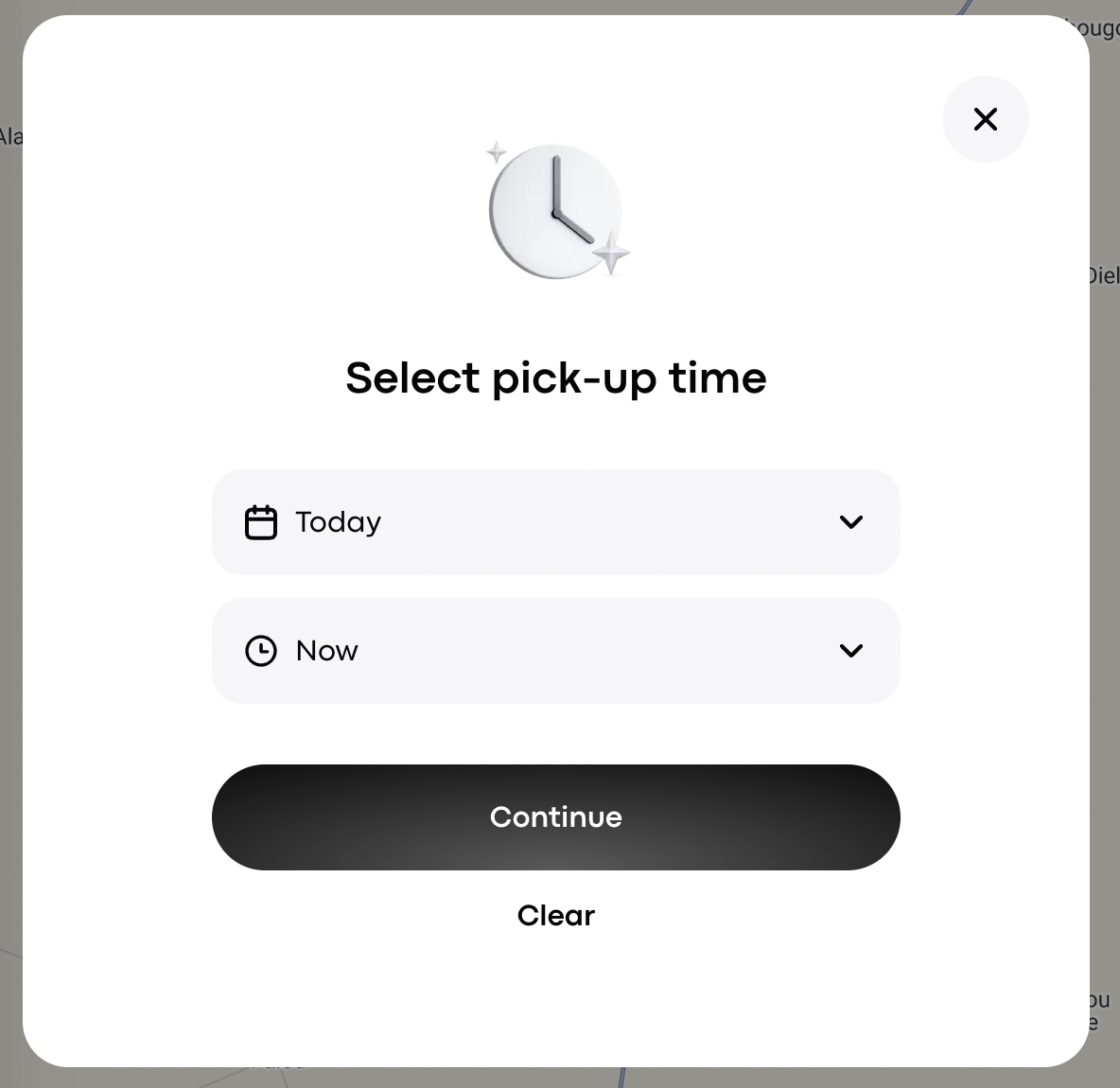
A “Select pick-up time” modal shows date and time dropdowns set to Today and Now, with Continue and Clear controls. Visible: Select pick-up time, Today, Now, Continue, Clear.

3. Click on the See prices button and complete authorization with your phone number. 
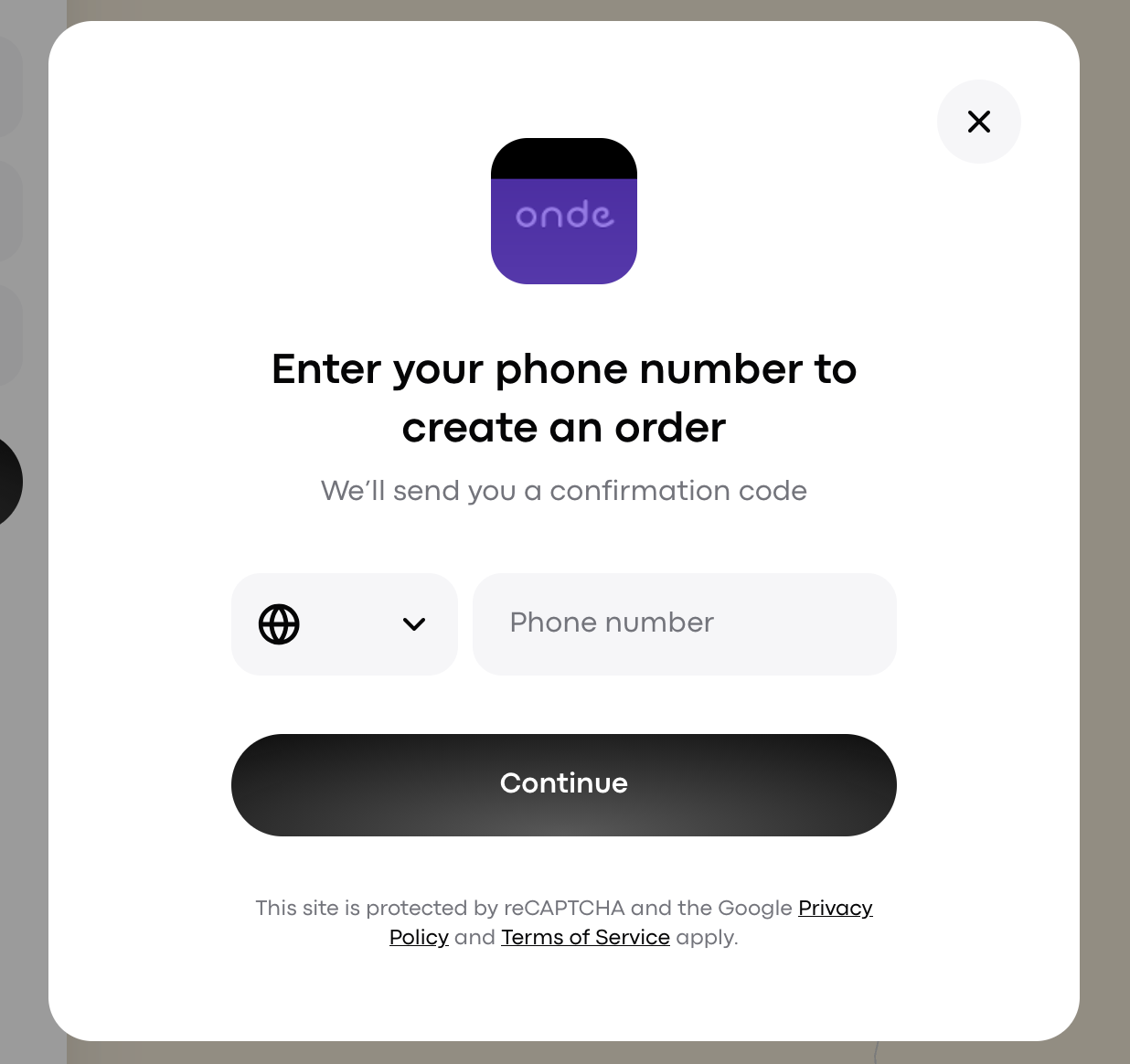
Phone number entry modal for creating an Onde order, with a country selector, phone number field, Continue button, and close control. Visible: onde, Enter your phone number to create an order, We’ll send you a confirmation code, Phone number, Continue, This site is protected by reCAPTCHA and the Goo

4. You'll see the list of available service options and estimated trip cost, as well as the option to add a special note for the driver.
Add a note if needed, and select the preferred service by tapping on the corresponding car icon.
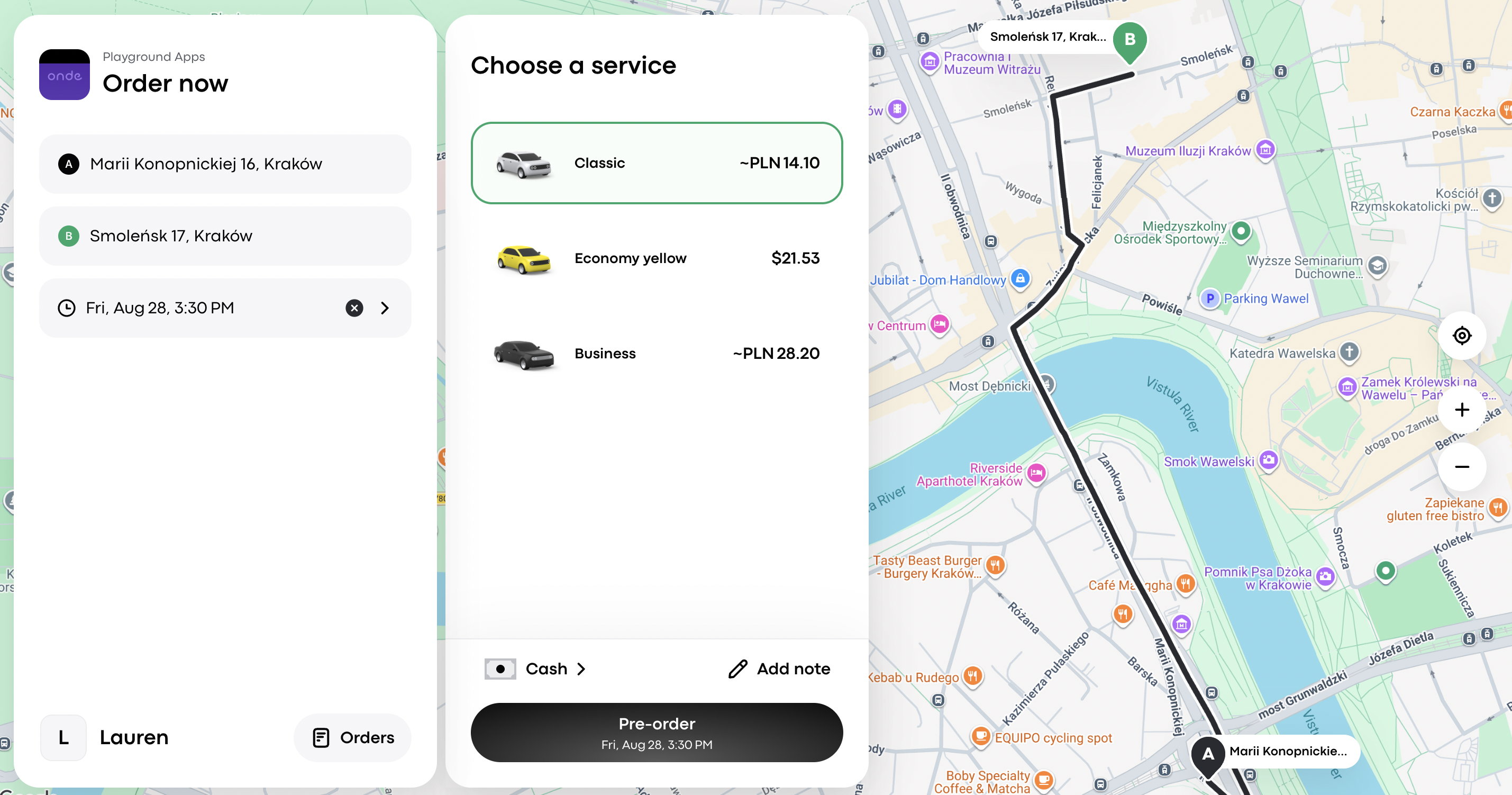
The Order now screen shows pickup and destination addresses, a scheduled time, Classic selected under Choose a service, and the route across a Kraków map. Visible: Order now, Marii Konopnickiej 16, Kraków, Smoleńsk 17, Kraków, Fri, Aug 28, 3:30 PM, Choose a service, Classic.

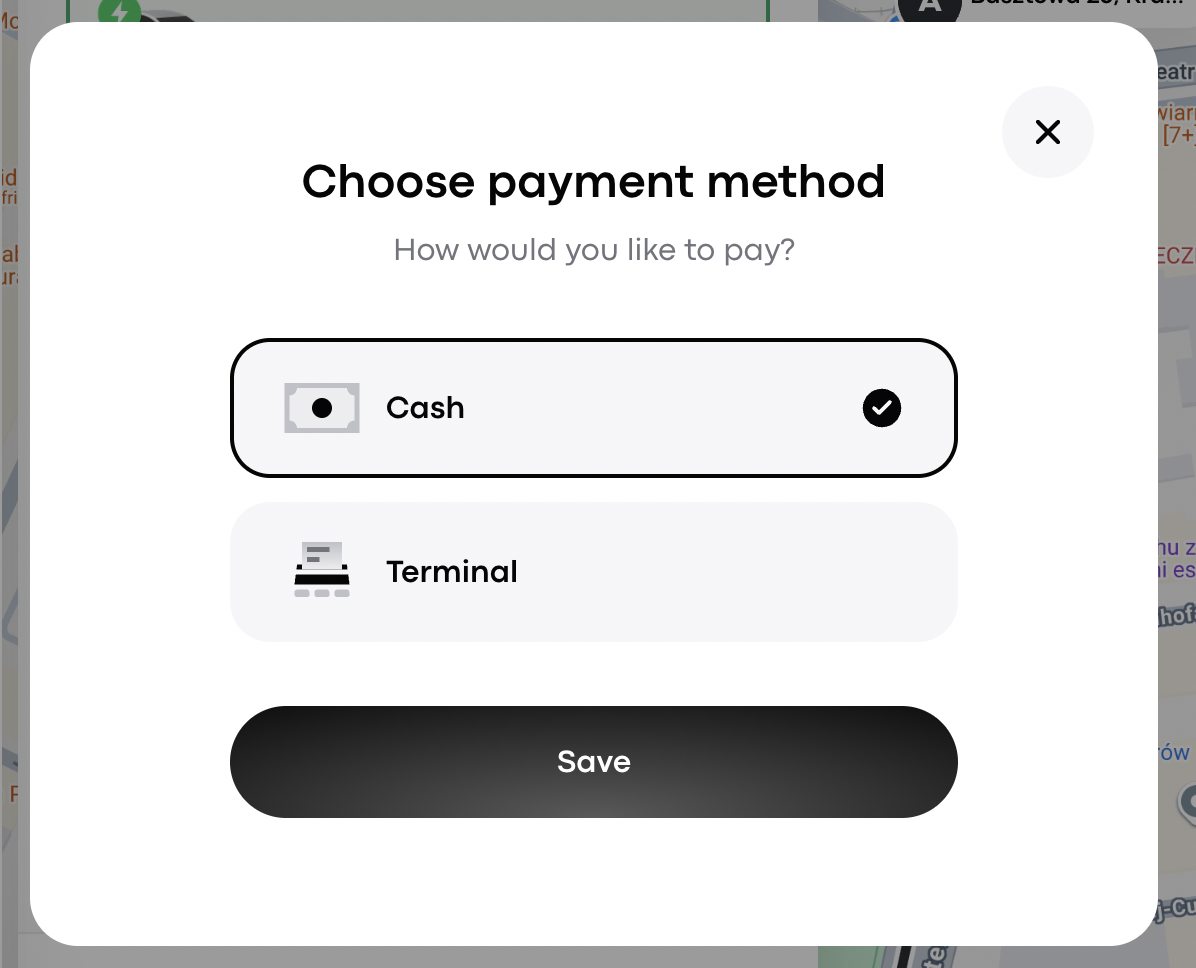
5. Next, select the preferred payment method. The Web App now allows you to choose between:

  • Cash

  • Terminal, if the business has a terminal connected and this option is available.

Сlick Save.
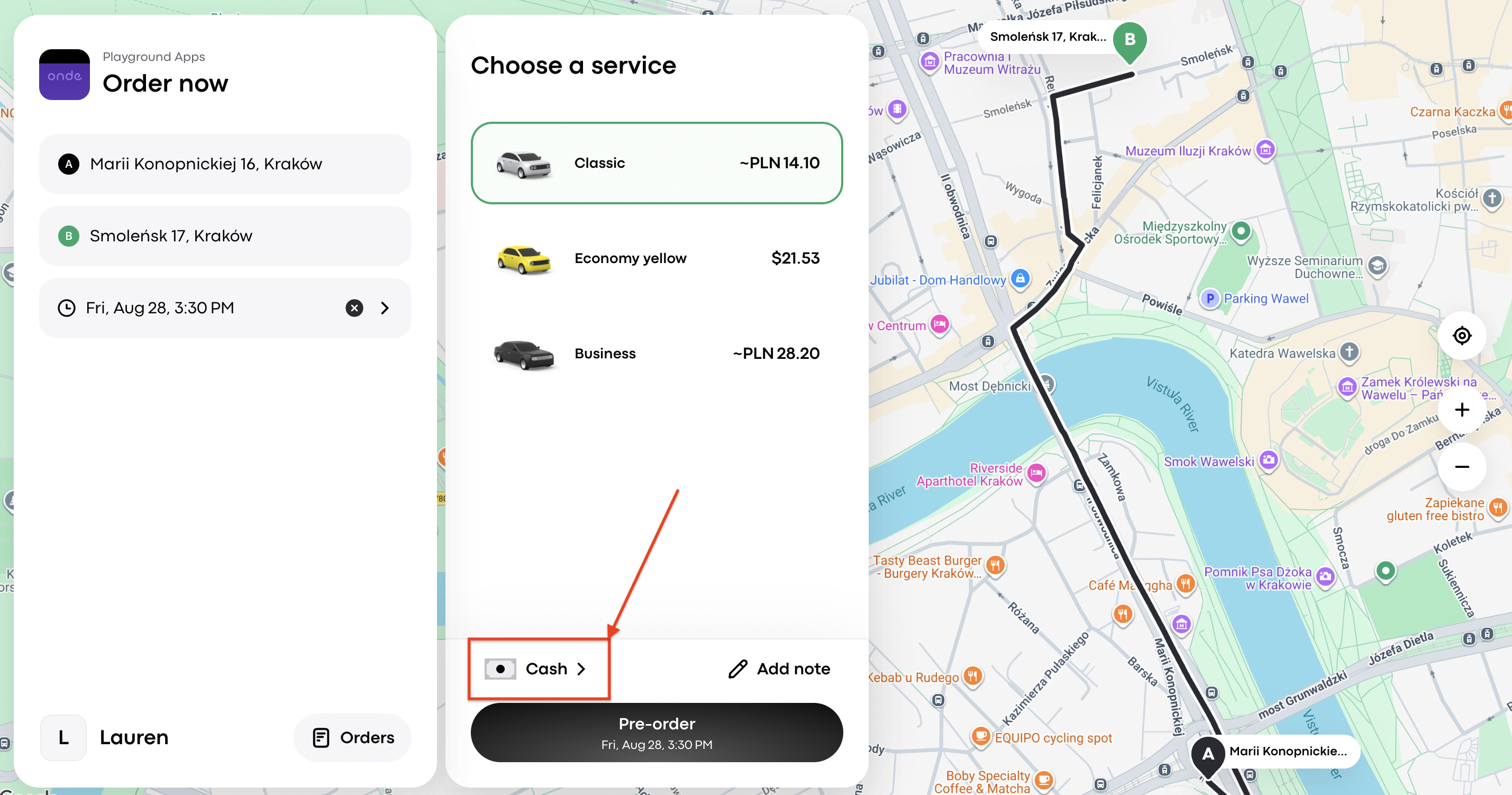
The Order now screen shows pickup and destination details, service options, and a red arrow pointing to the Cash payment selector. Visible: Order now, Choose a service, Marii Konopnickiej 16, Kraków, Smoleńsk 17, Kraków, Fri, Aug 28, 3:30 PM, Classic.
The Choose payment method dialog shows Cash selected, Terminal as another option, and a Save button. Visible: Choose payment method, How would you like to pay?, Cash, Terminal, Save.

6.  Review order details and click Pre-order. The search for the driver will begin — track the order assignment and driver details in the order form field.

7. If necessary, you can cancel the pre-order by tapping on Cancel order.

 

Did this answer your question?
😞
😐
😁