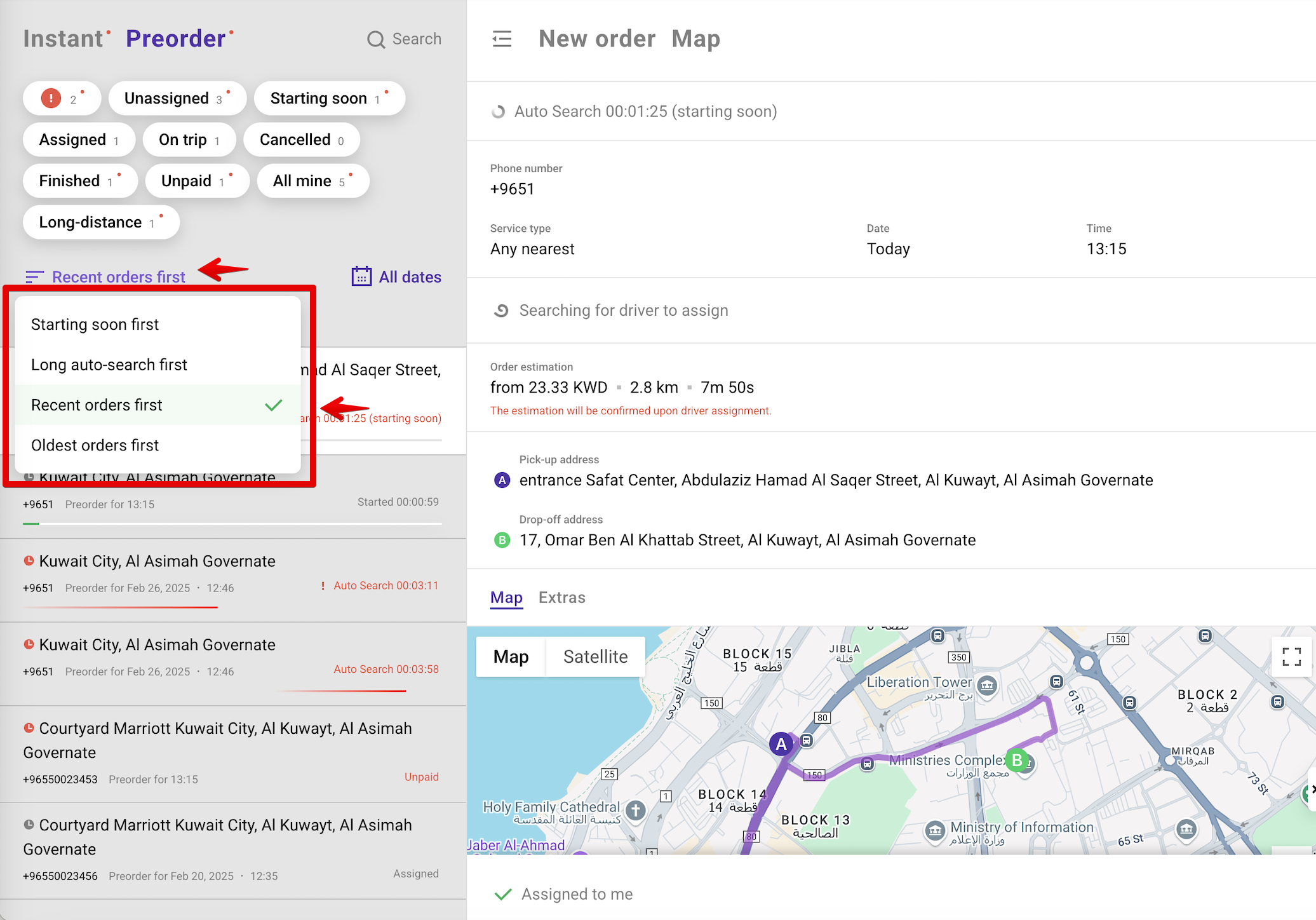
Operators can sort preorders based on different needs. Clicking the Sort button opens a drop-down with these options:
Long auto-search first – Displays orders that have been in auto-search the longest.
Starting soon first – Lists preorders by pick-up time, with the soonest at the top.
Recent orders first (default) – Shows the most recently created preorders first.
Oldest orders first – Displays the oldest preorders first.
Only one sorting option can be selected at a time. The Operator app remembers the last selected option.
The Operator App provides two main filtering options for managing preorders:
By Status
By Date
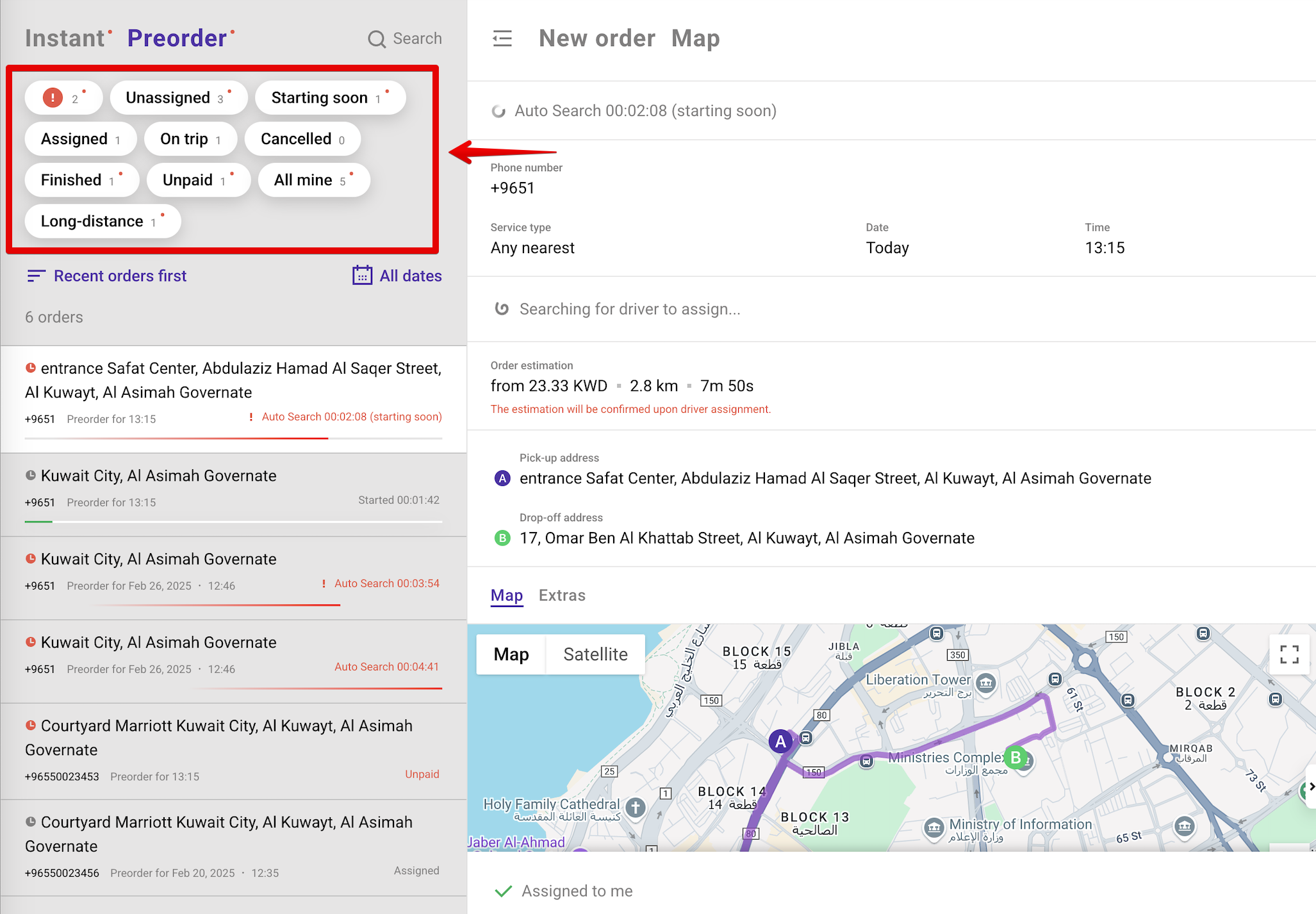
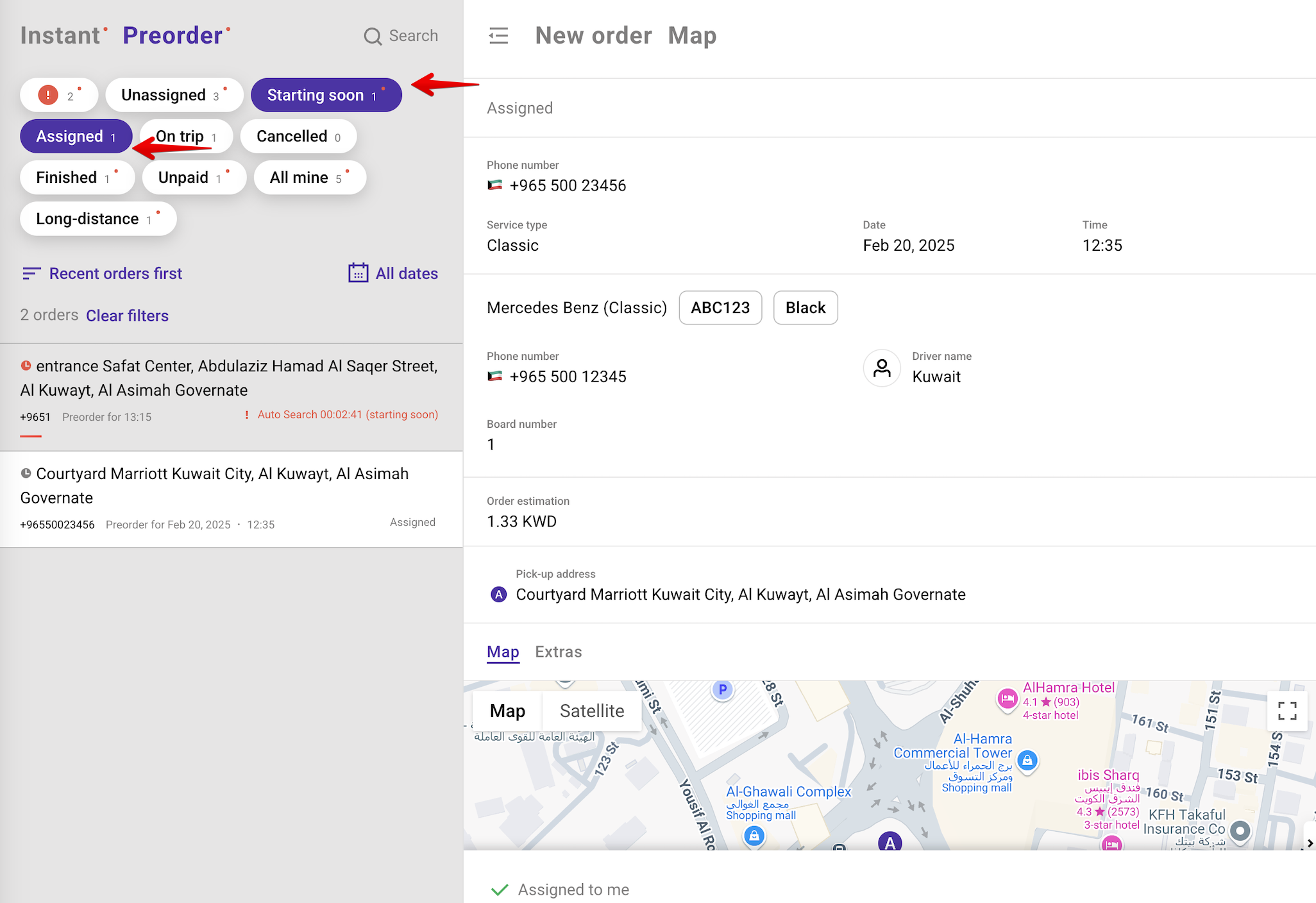
Operators can filter preorders based on one or more of the following statuses:
Assigned – a driver has been assigned to the order.
Unassigned – the system is searching for a driver.
Starting Soon – the order is scheduled to start in 30 minutes or less.
On Trip – the driver has started the journey from point A to B.
Cancelled – the order has been cancelled, regardless of the source.
Finished – includes both paid and unpaid completed orders.
Unpaid – completed but not paid orders.
All Mine – shows orders created by the currently logged-in operator.
Long-Distance – trips longer than 15 km or estimated to take over 1 hour.
Once selected, the app will display a list of preorders matching the chosen statuses.
By default, the Operator app displays preorders for all dates.
Tap "All Dates" to open the calendar and select the desired date.
If no preorders exist for a certain day, that day will appear disabled in the calendar.
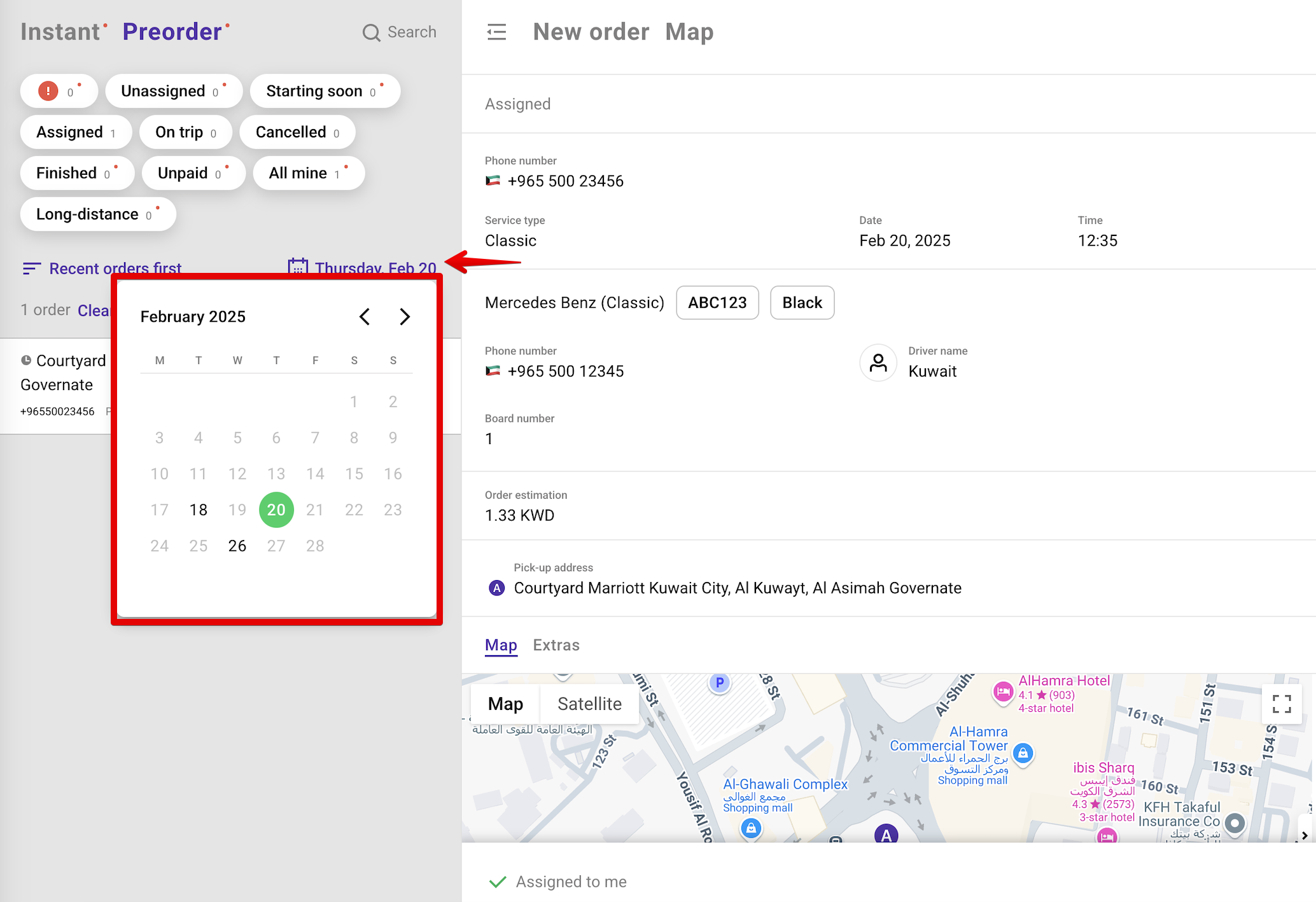
Displays preorders scheduled for the selected pickup date.
Sorts preorders according to the selected sorting mode:
Long auto-search first
Starting soon first
Recent orders first
Oldest orders first
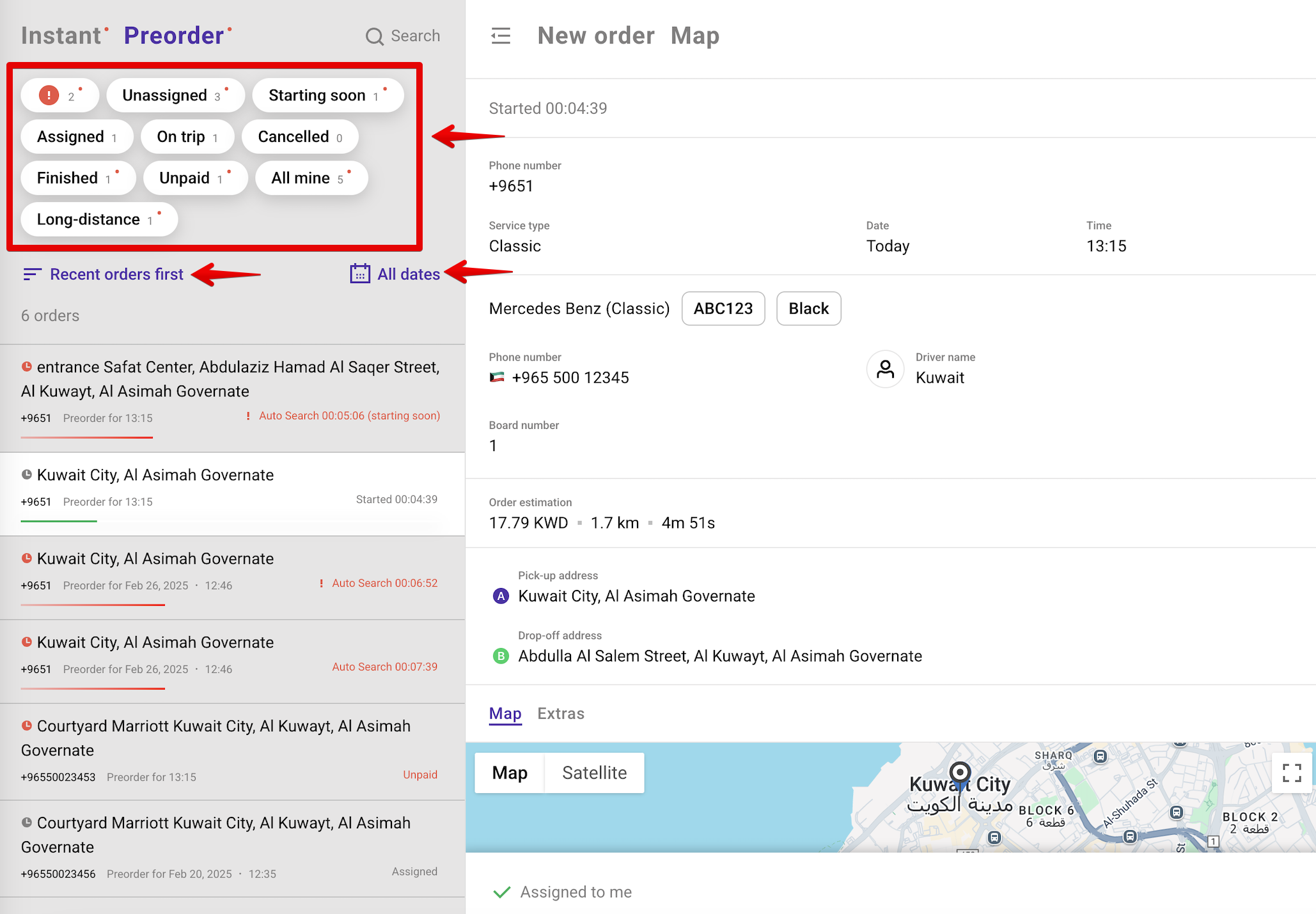
If an operator selects a date from the calendar and then applies additional filters, the app will show preorders that meet all selected criteria.
Tapping “Clear filters” resets the view to show all preorders across all statuses and dates.