
How to duplicate an order in the Operator app?

Learn about duplicating orders in the Operator app.

Operators may need to duplicate an order if:

  • A driver cancels, and the order must be reassigned.

  • A customer needs multiple cars at the same pick-up location.

1. Go to the Operator app, choose the order that you wish to duplicate and press “Duplicate”. 
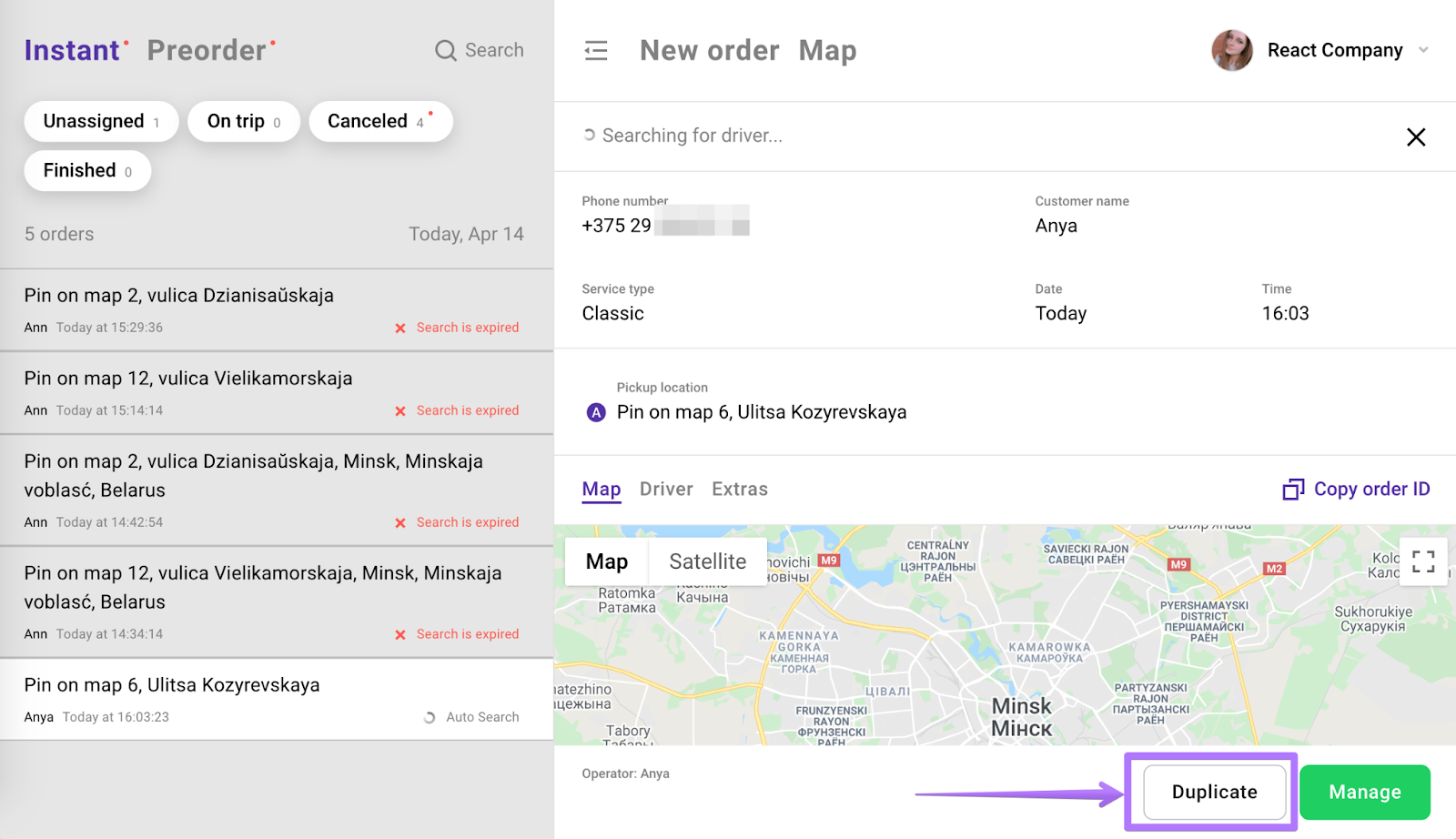
The New order Map screen shows an order list and Minsk map; a purple arrow points to the Duplicate button at the bottom right. Visible: Instant, Preorder, Search, Unassigned, On trip, Canceled.

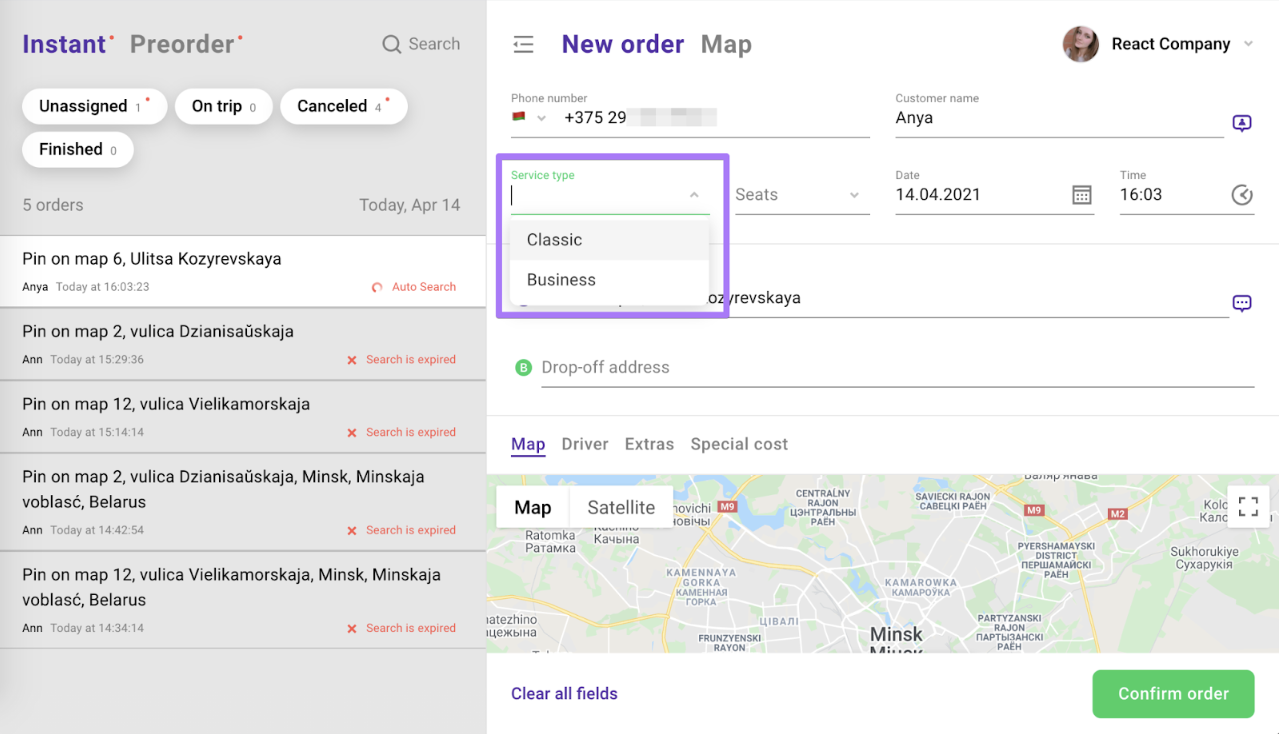
2. Select the service type for the new duplicated order.
3. Press “Confirm order” in the bottom-right corner of the screen.
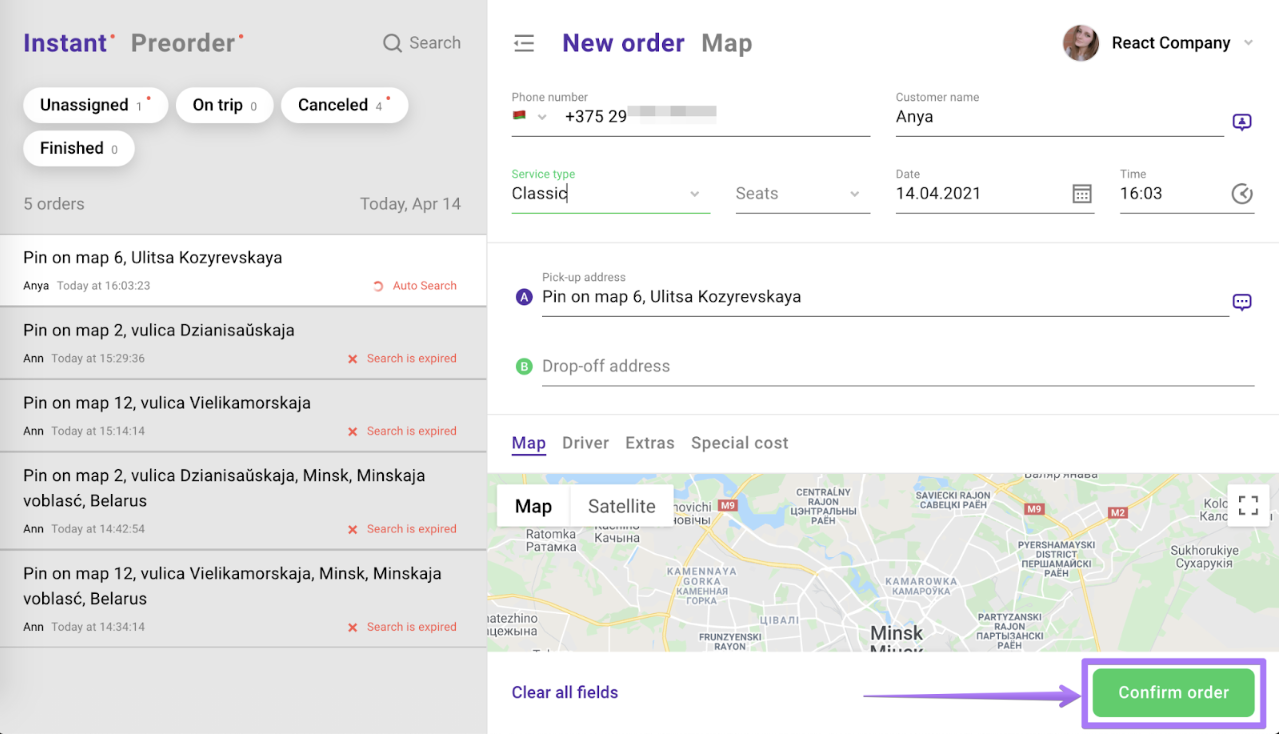
The New order screen shows customer and trip details above a Minsk map, with a purple arrow pointing to the Confirm order button. Visible: New order, Map, React Company, Phone number, Customer name, Anya.

The duplicated order will now be created and sent for driver search!

Did this answer your question?
😞
😐
😁