company logo

Onde.Light Help Сenter

Go to Onde.Light
Terms & ConditionsPrivacy policy
All collectionsOperator appHow to cancel the order in the Operator app?

How to cancel the order in the Operator app?

Learn about cancelling orders in the Operator app.

Sometimes an operator needs to cancel a trip from the Operator app.

The logic is different depending on the

  • order source: Customer Web Application/Operator app

  • order state (accepted, on a ride etc).

How to cancel an order originated in the Operator app

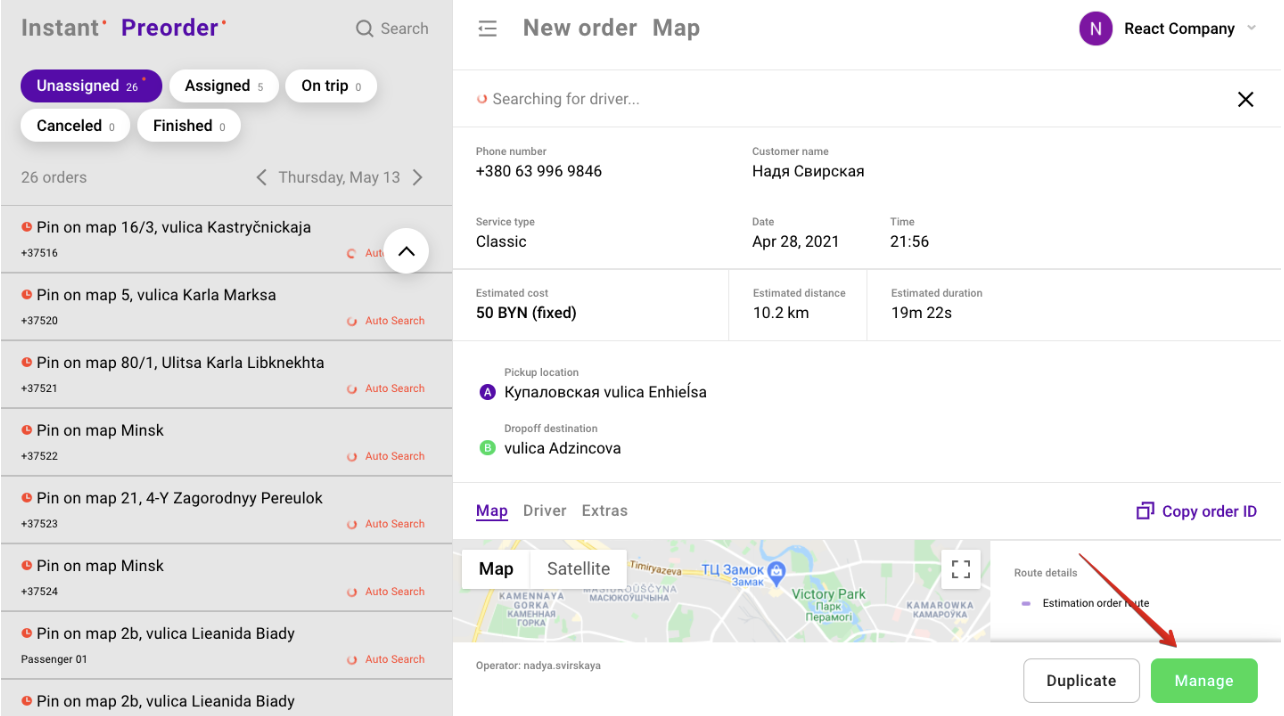
1. Go to the Operator app, choose the order that you wish to cancel and press "Manage".  
Order management screen showing order details and map; a red arrow points to the green Manage button at bottom right. Visible: Instant, Preorder, Unassigned, On trip, Canceled, Finished.

2. Press "Cancel order" in the bottom-left corner of the Operator app.
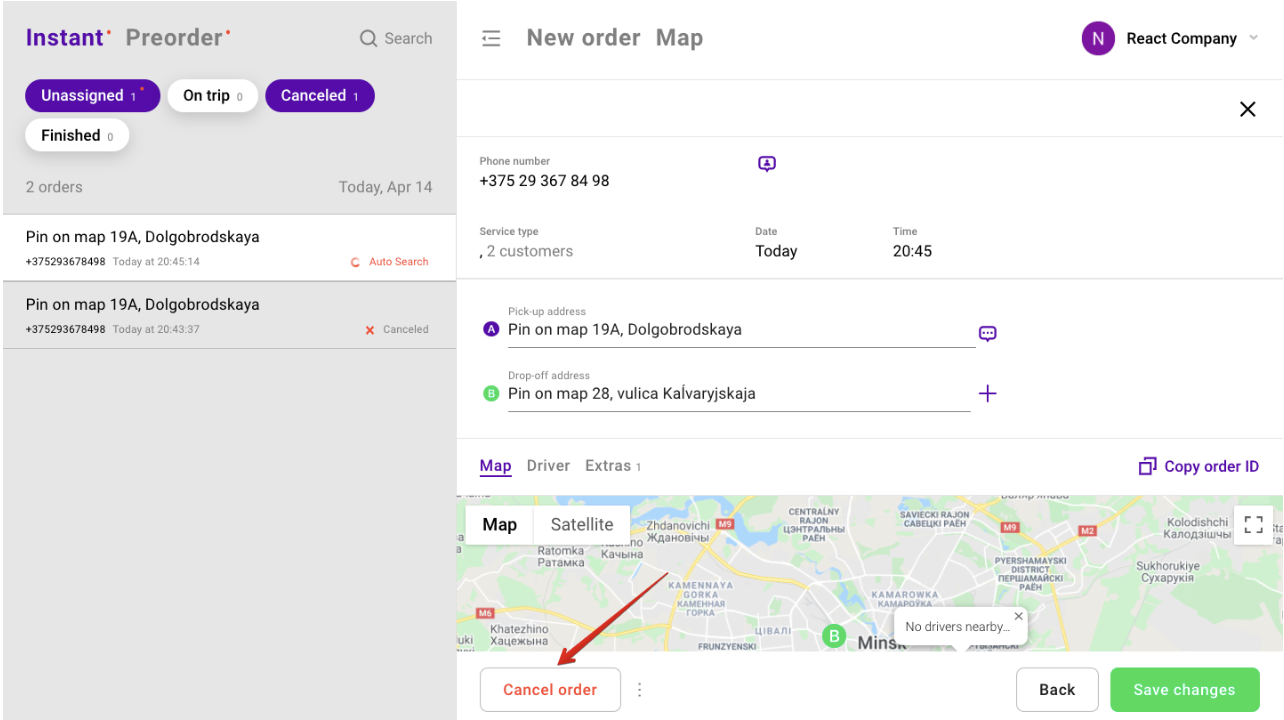
The order details screen shows a route map and a red arrow pointing to the Cancel order button at the bottom left. Visible: Instant, Preorder, Search, Unassigned, On trip, Canceled.

How to cancel an order originated in the Customer Web application

IMPORTANT:

  • Only operators with Full access can cancel Customer Web App orders.

  • The cancellation is only possible after the driver has started the ride.

  • The “Cancel order” button will appear only after the driver swipes to "Start a ride".

1. Go to the Operator app, select the order and press "Assign to me".
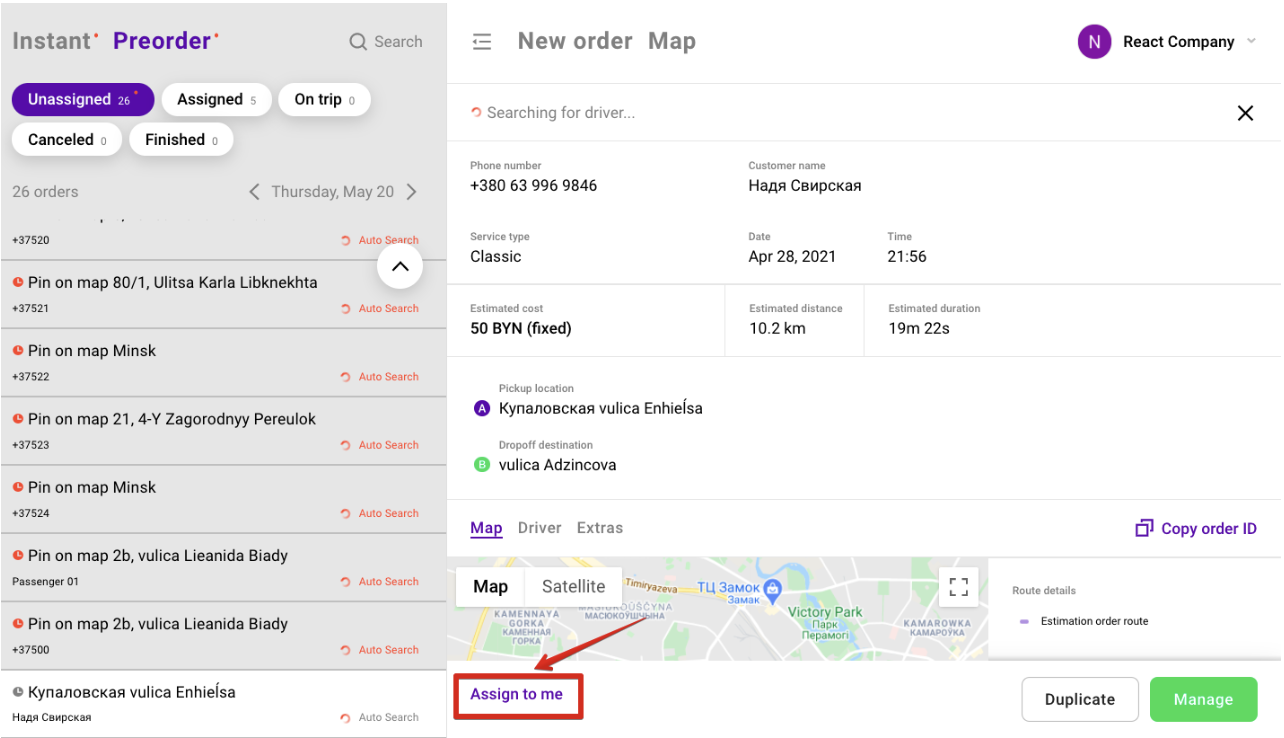
Order management screen showing a selected order’s details and map, with a red arrow pointing to the “Assign to me” button. Visible: Instant, Preorder, Unassigned, Assigned, On trip, Canceled.

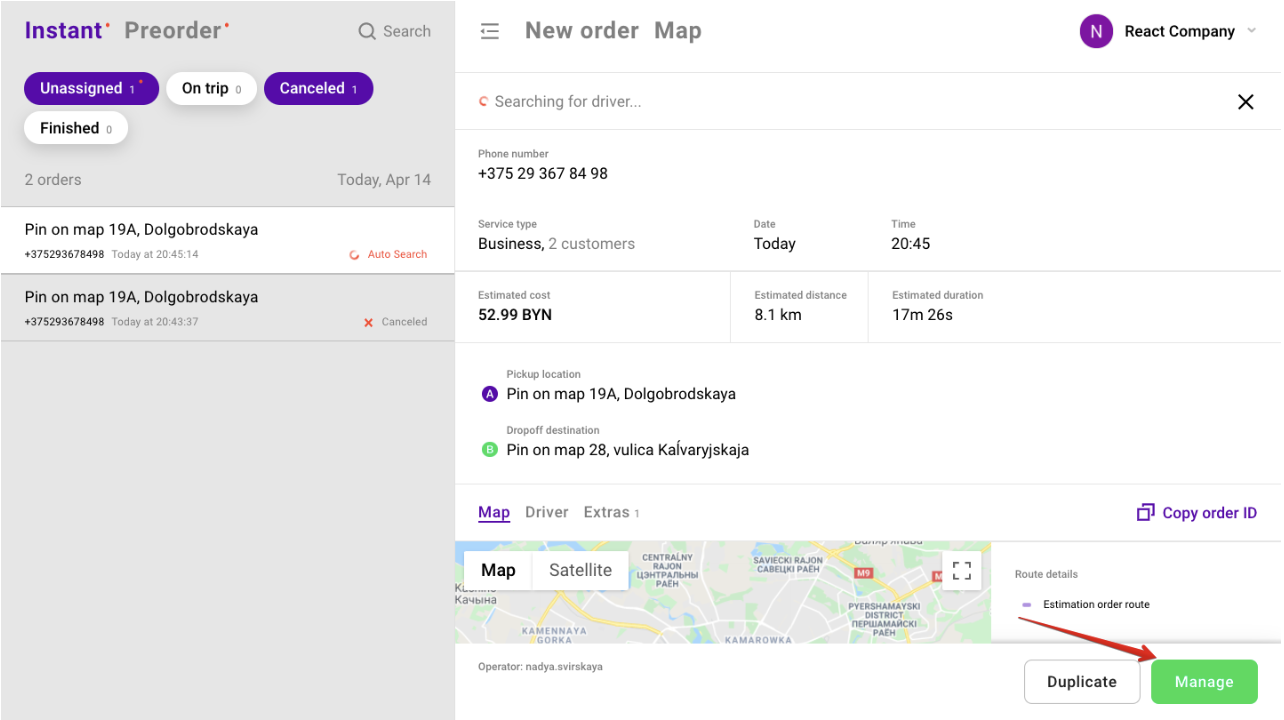
2. Press "Manage".

Order details screen shows customer, trip, and map information, with a red arrow pointing to the green Manage button. Visible: New order, Map, Searching for driver..., Phone number, Customer name, Service type.

3. Press "Cancel order" in the bottom-left corner.
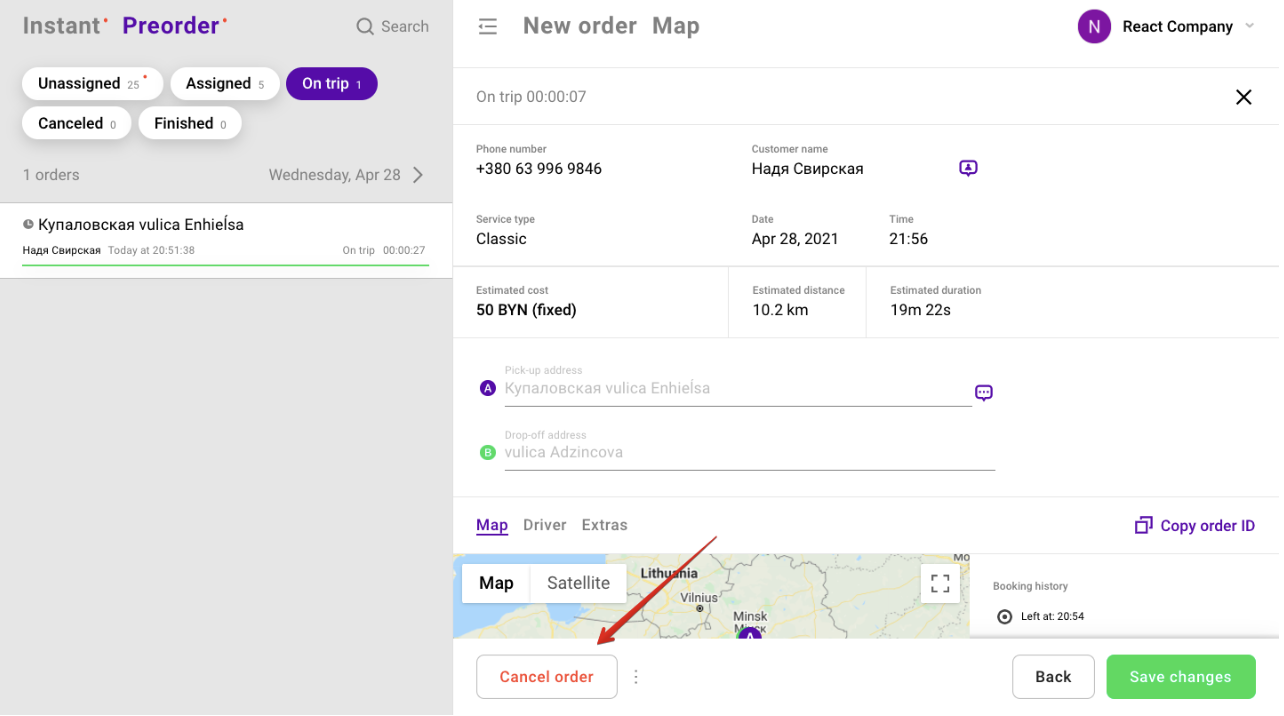
The New order Map screen shows an active trip’s details and route map, with a red arrow pointing to the Cancel order button. Visible: Instant, Preorder, Unassigned, Assigned, On trip, Canceled.

Did this answer your question?
😞
😐
😁