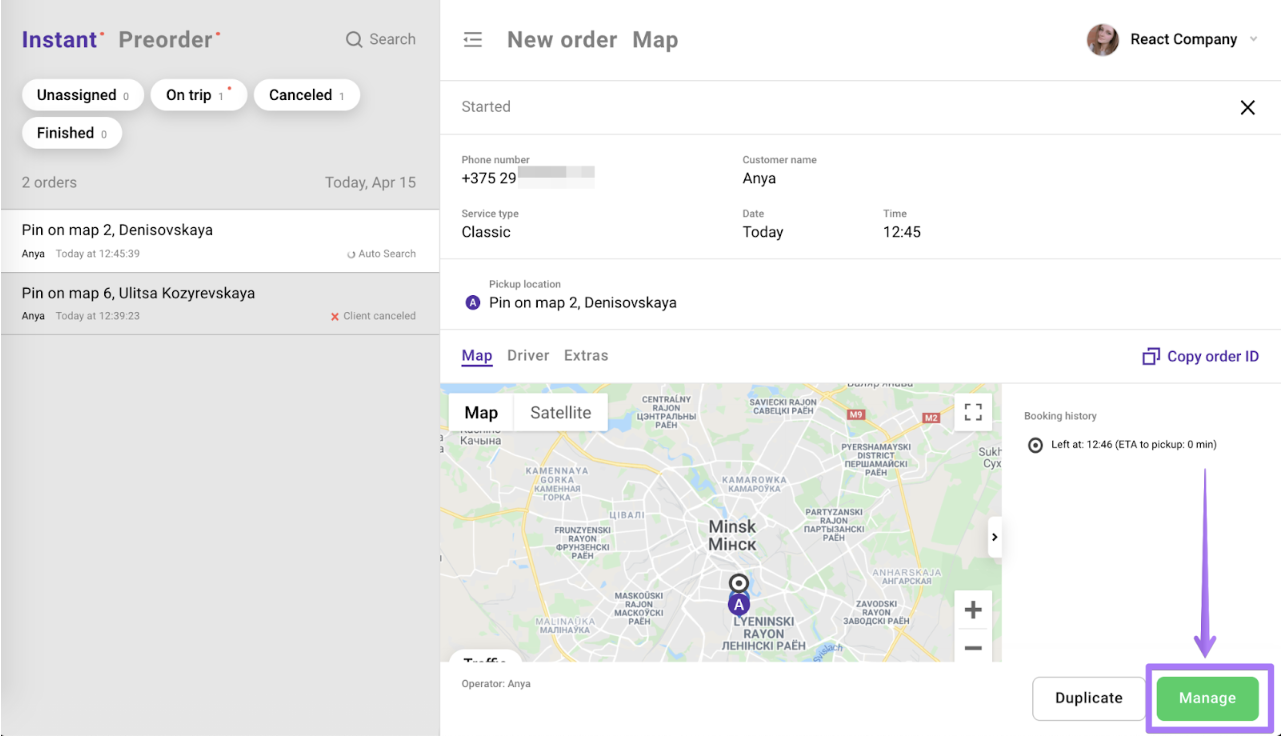
How to reassign the order in the Operator app

Learn about reassigning orders in the Operator app.

Operators can reassign an order to another driver.

1. Click “Assign to me”.
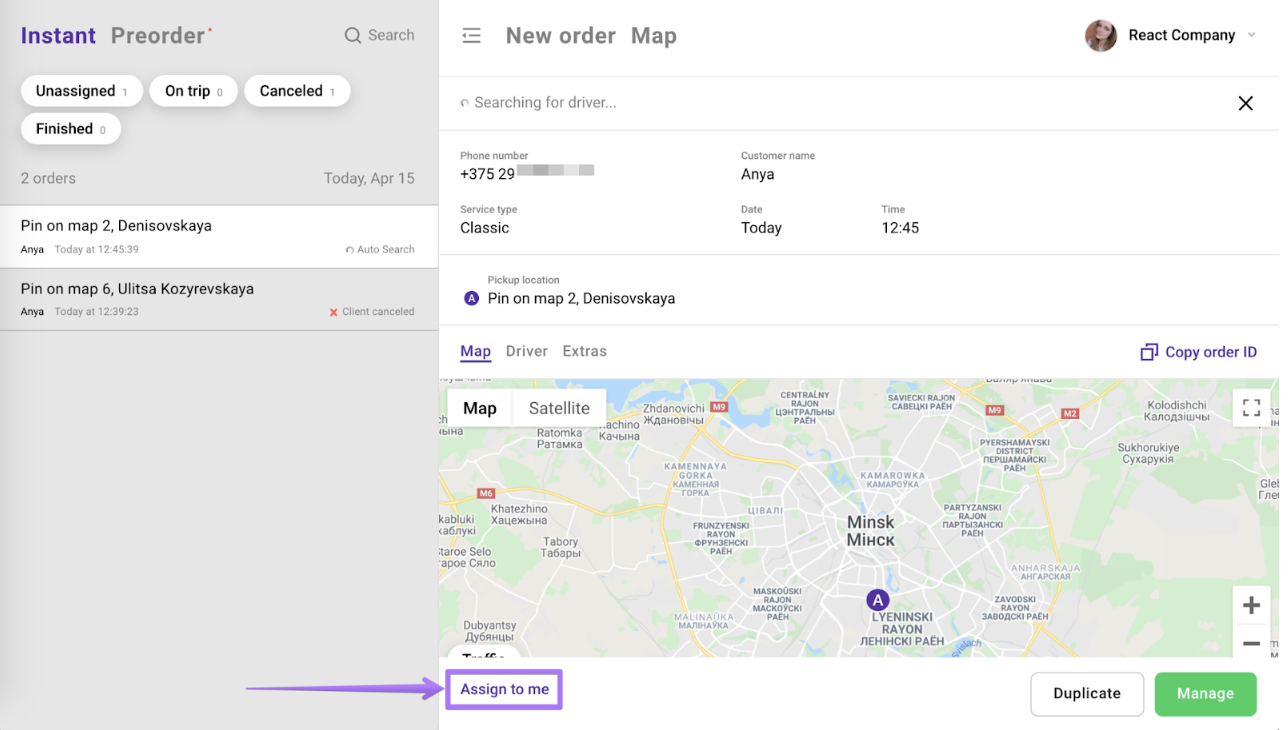
Instant Preorder order management screen showing an unassigned order on the Minsk map; a purple arrow points to the Assign to me button. Visible: Instant, Preorder, Unassigned, On trip, Canceled, Finished.

2. Press “Manage”.

The Instant Preorder order details screen shows a Minsk map, and a purple arrow and outline highlight the Manage button. Visible: Instant, Preorder, Search, New order, Map, Unassigned.

3. Open the “Driver” section and replace board number (phone number or driver’s name) with new driver details:
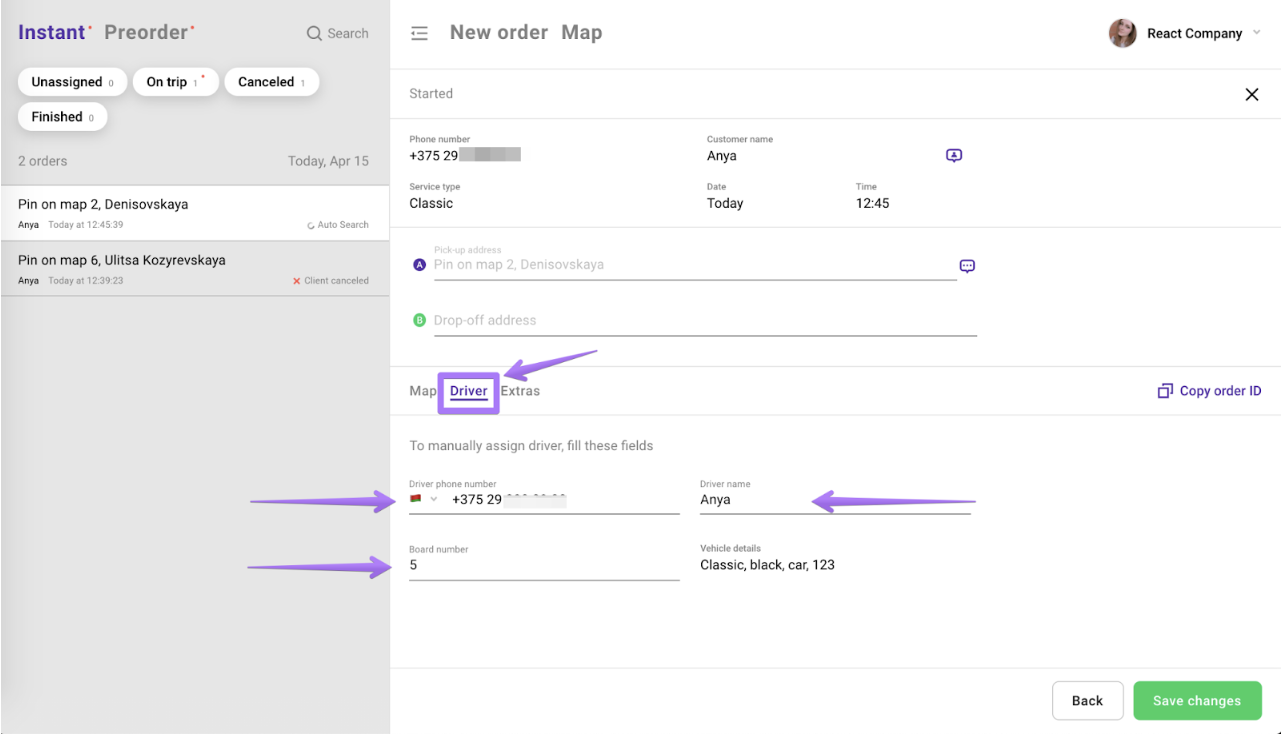
The New order screen’s Driver tab shows manual driver assignment fields, with purple arrows pointing to Driver, driver phone number, driver name, and board number. Visible: New order, Map, Started, Phone number, Customer name, Service type.

4. Click “Save changes”. 

Did this answer your question?
😞
😐
😁