company logo

Onde.Light Help Сenter

Go to Onde.Light
Terms & ConditionsPrivacy policy
All collectionsDriver appHow to delete a driver's profile

How to delete a driver's profile

Learn about deleting a driver's profile in Onde.Light.

Under GDPR policies, drivers can request to delete their personal information from the platform. Here's how the process works:

Step 1. Open the Driver app

Tap the side menu.
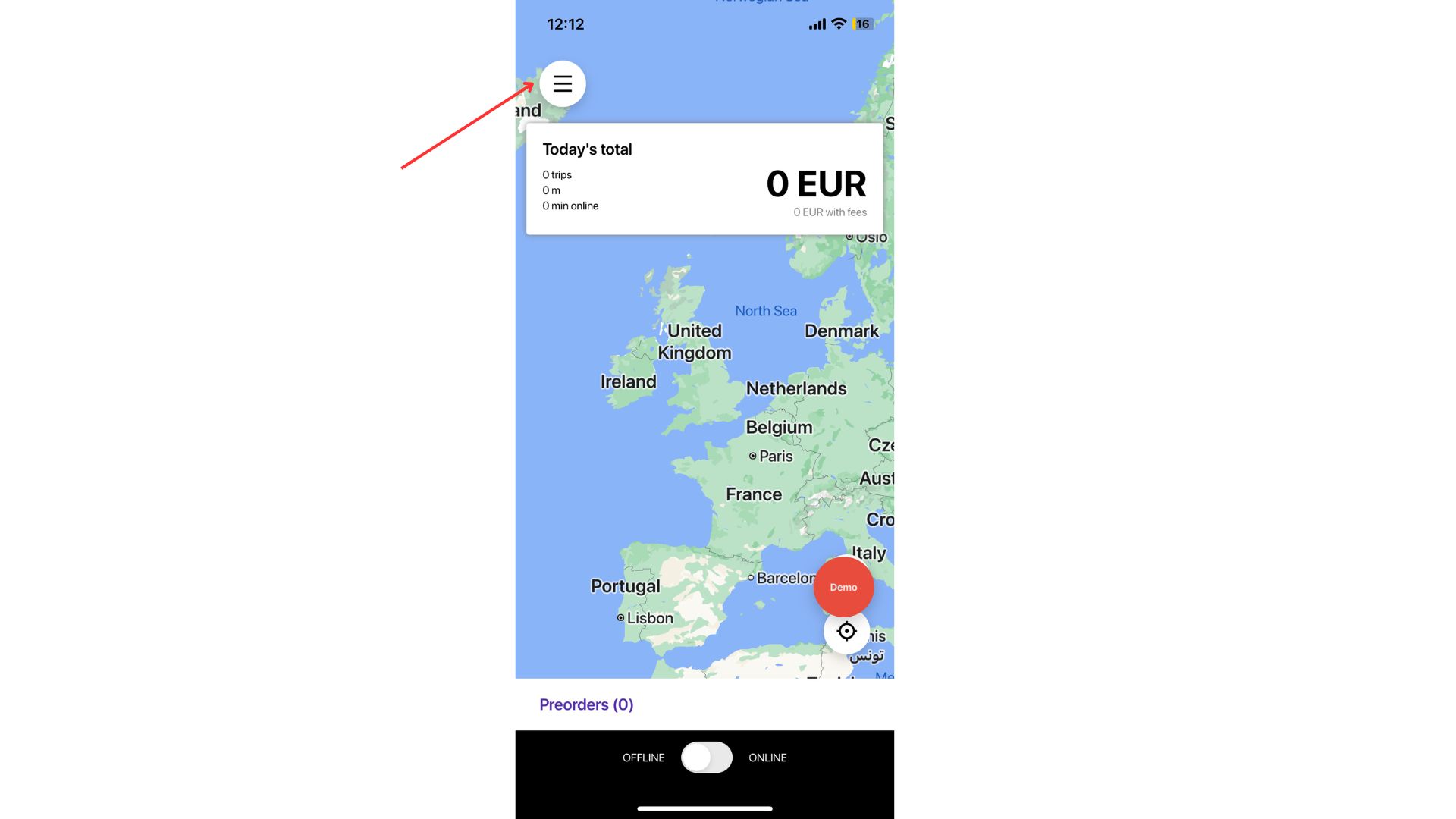
Driver app map screen shows a world map, today’s total panel, Preorders section, and offline/online toggle; red arrow points to the hamburger menu. Visible: Today's total, 0 trips, 0 m, 0 min online, 0 EUR, 0 EUR with fees.

Select Profile to view your personal data.
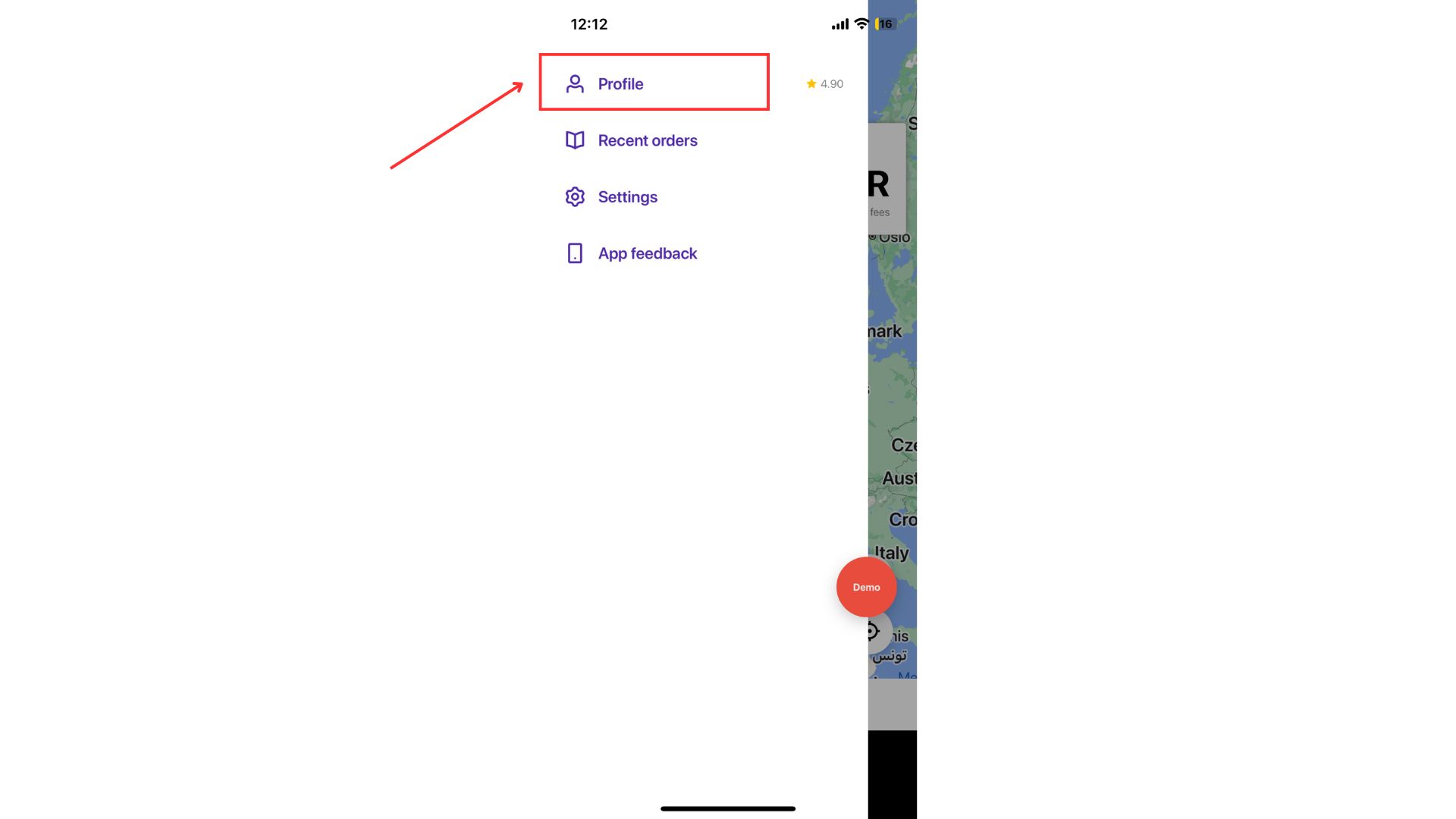
A mobile app side menu shows Profile, Recent orders, Settings, and App feedback; a red arrow and box highlight the Profile option. Visible: Profile, Recent orders, Settings, App feedback, 4.90, Demo.

Tap Delete my account to start the deletion process.
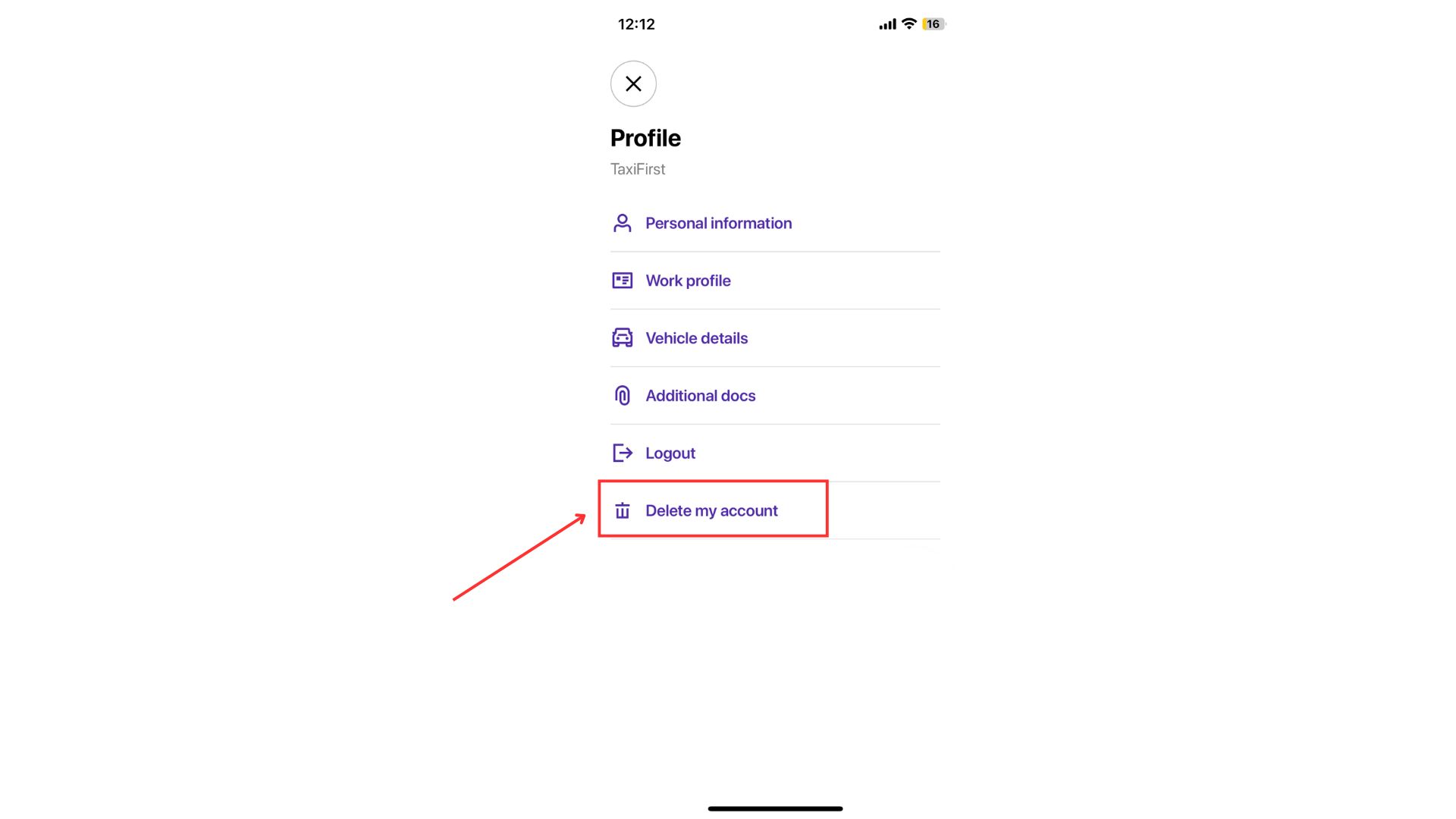
The TaxiFirst Profile screen lists account settings, with a red box and arrow highlighting “Delete my account.”. Visible: Profile, TaxiFirst, Personal information, Work profile, Vehicle details, Additional docs.

Step 2: Confirm the request

Enter the confirmation code displayed on the screen. Tap Confirm.
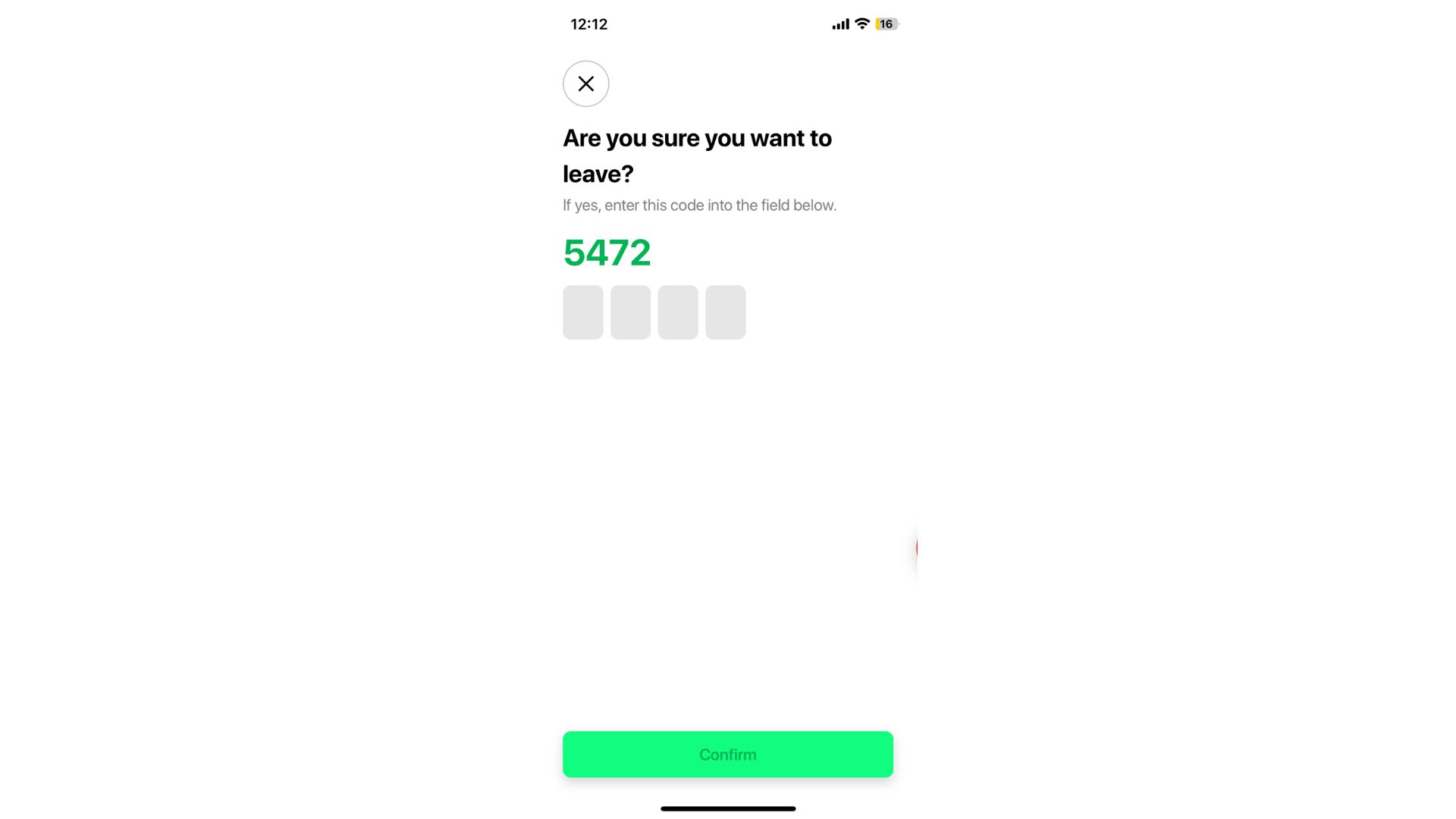
A leave-confirmation screen asks whether to leave and shows code 5472 above four entry boxes and a Confirm button. Visible: Are you sure you want to leave?, If yes, enter this code into the field below., 5472, Confirm, 12:12.

Step 3. Submit the request

Tap Delete account to send the deletion request to the company and log out of the app.
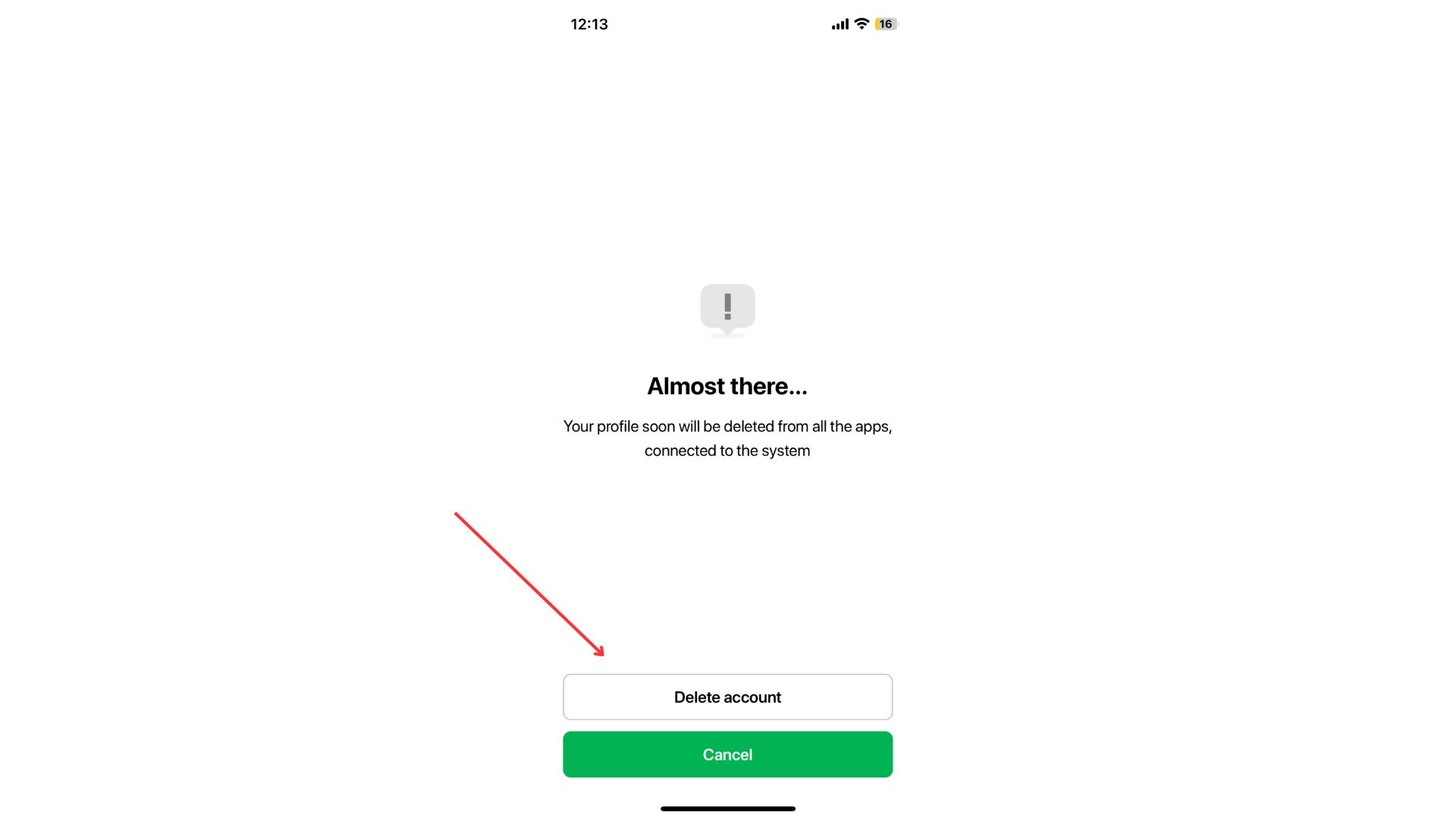
The account deletion confirmation screen says the profile will be deleted from connected apps, and a red arrow points to Delete account. Visible: Almost there..., Your profile soon will be deleted from all the apps,, connected to the system, Delete account, Cancel, 12:13.

What happens next?

  • The company owner will see the driver’s status as “Deactivated” in My hub.

  • The driver’s data will remain in the system for 30 days.

    • If the company owner does not delete the account manually, it will be automatically removed after 30 days.

    • The driver’s status in reports will change to “Closed”.
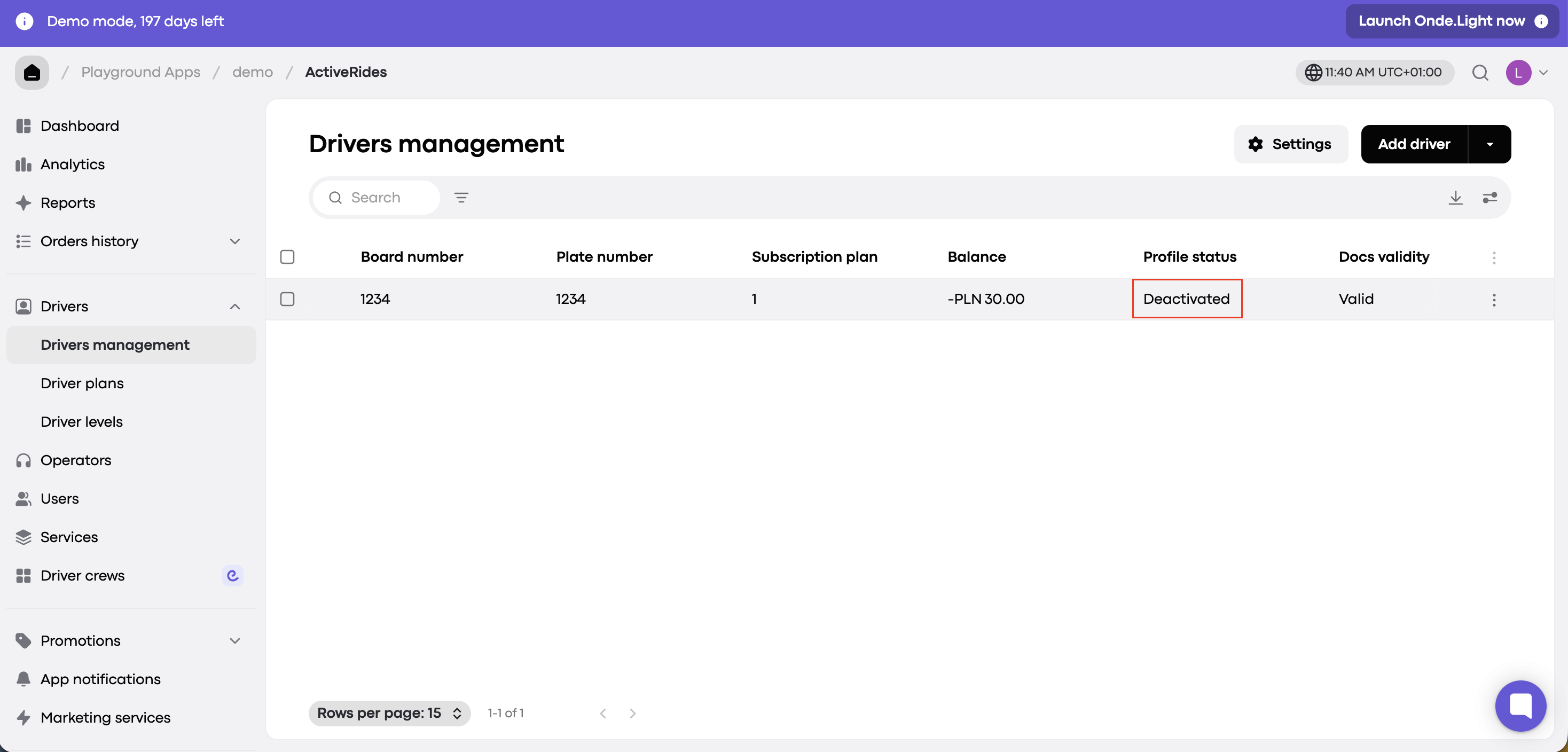
Drivers management screen lists one driver with board and plate numbers, subscription plan, balance, profile status, and document validity; red box highlights Deactivated. Visible: Demo mode, 197 days left, Launch Onde.Light now, Playground Apps, demo, ActiveRides, Dashboard.

If the driver logs in again within 30 days

  • The driver’s status in My Hub will change to “Waiting for activation”.

  • The company manager must manually review and reactivate the account.

  • Drivers cannot resume work immediately; manual activation is required.
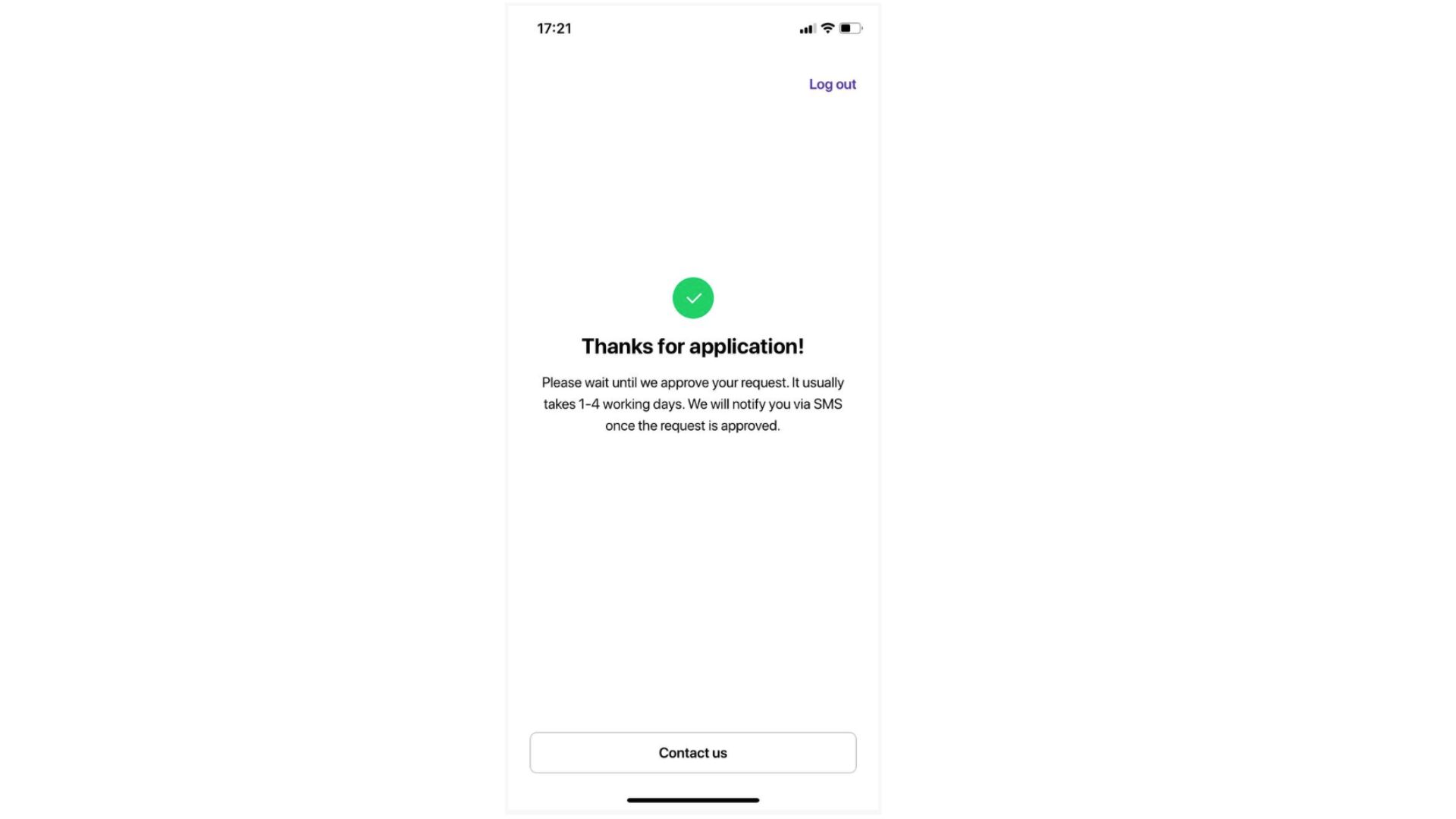
The application confirmation screen shows a green check, a message that approval usually takes 1–4 working days, and Contact us. Visible: Log out, Thanks for application!, Please wait until we approve your request. It usually takes 1-4 working days. We will notify you via SMS once the request is app

Did this answer your question?
😞
😐
😁