
How to enable back-to-back rides

Learn about the back-to-back rides feature and how to activate it.

The back-to-back rides feature allows drivers to receive a new ride request while they are still completing their current trip. You can enable or disable this feature for each service individually.

Step-by-step instructions

  1. Go to My hub and navigate to the "Services" tab.
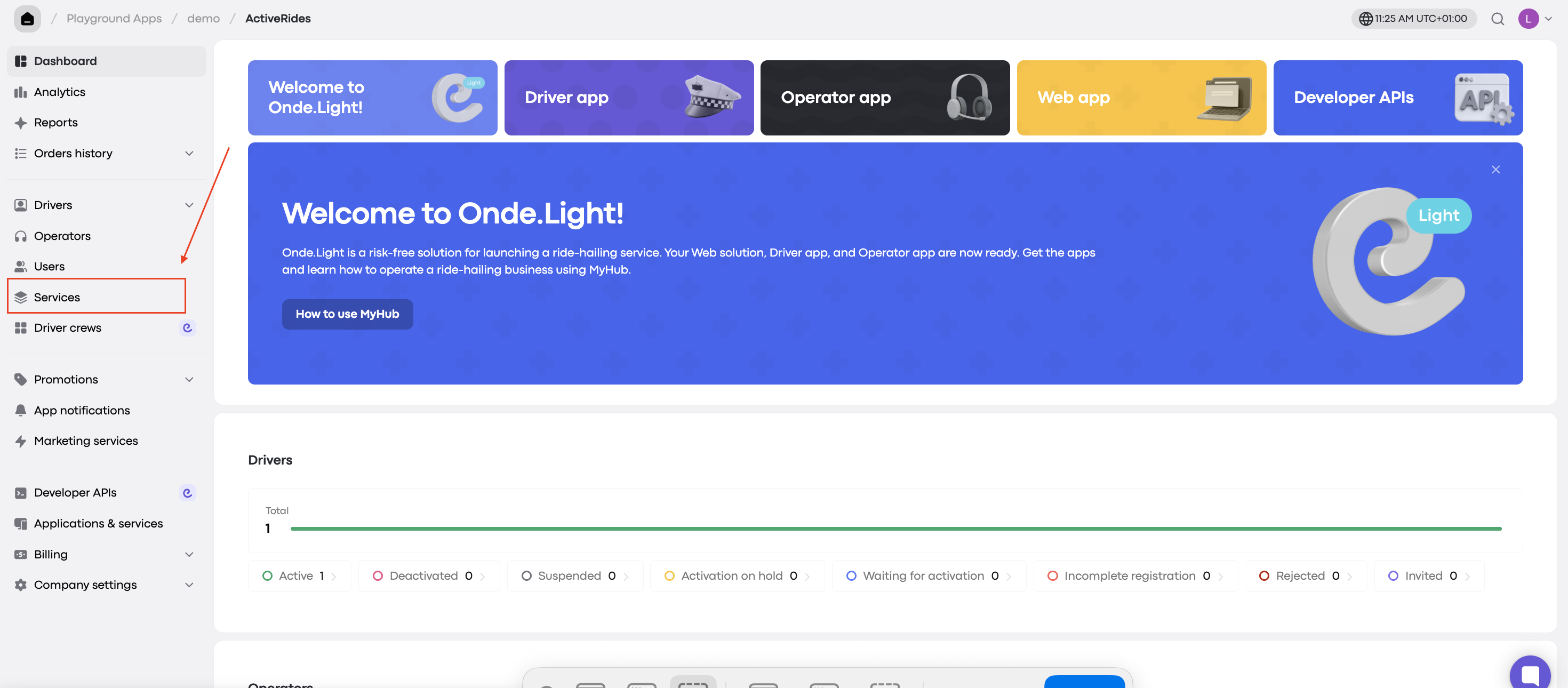
The ActiveRides dashboard shows its left navigation and overview cards, with a red arrow pointing to the red-outlined Services menu item. Visible: Playground Apps, demo, ActiveRides, Dashboard, Analytics, Reports.
  1. Select the service that you wish to edit and click on it.

  2. In General settings, scroll down to the Driver app section. Locate the "Back-to-back rides for drivers" toggle and switch it ON.
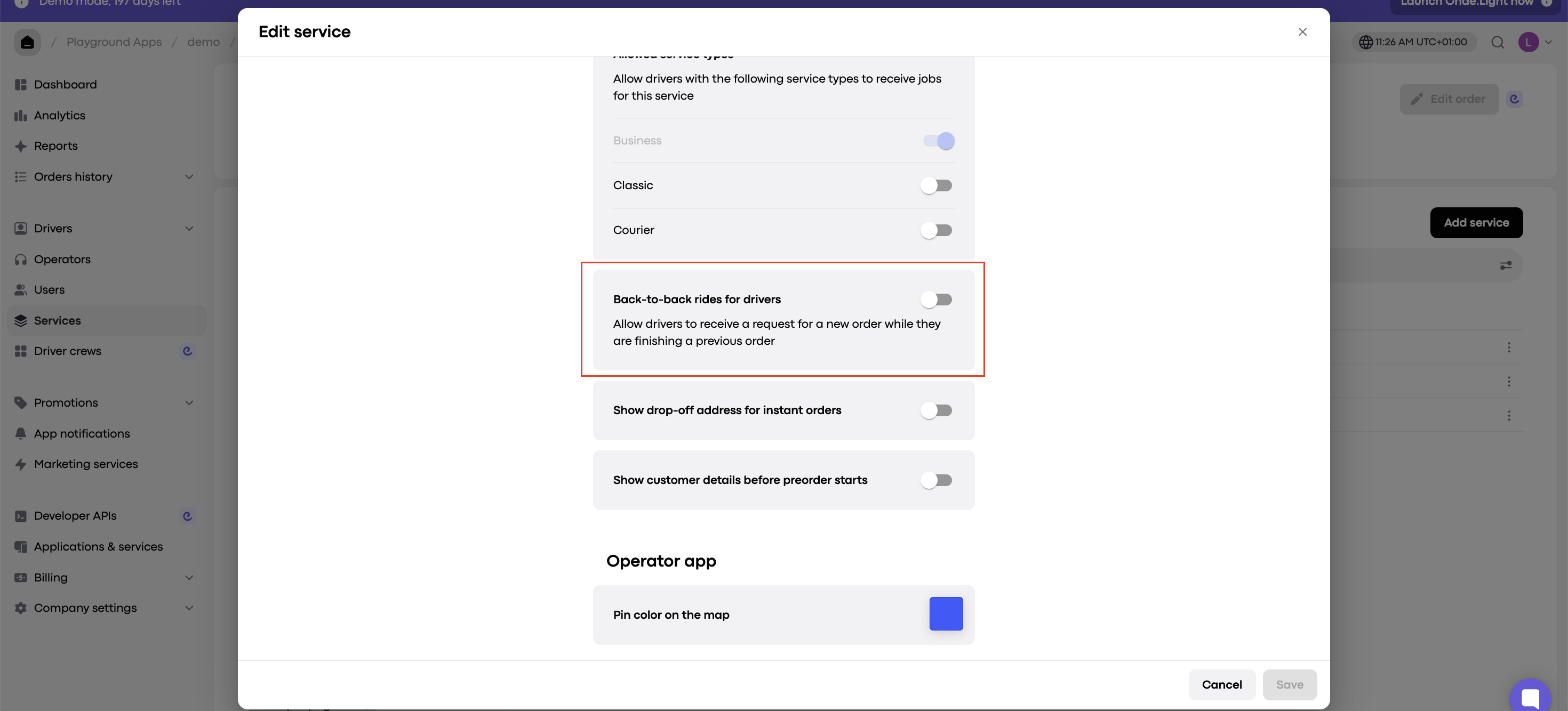
The Edit service modal shows service settings, with a red outline around the Back-to-back rides for drivers option and its off toggle. Visible: Edit service, Allowed service types, Business, Classic, Courier, Back-to-back rides for drivers.

The default lead time is 5 minutes (300 seconds) before the current trip ends. You can adjust this to any value between 1 minute and 30 minutes to fit your workflow.
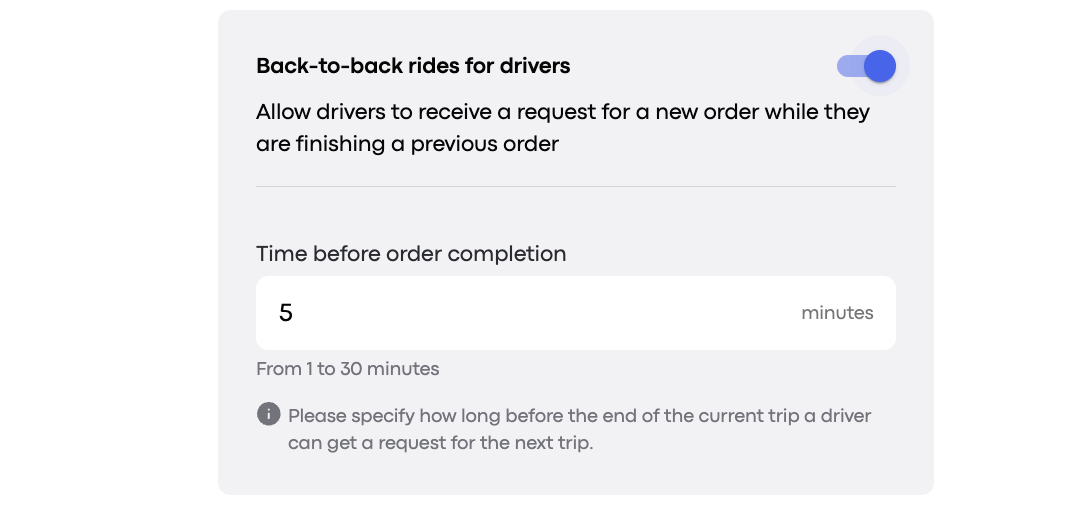
The Back-to-back rides for drivers setting screen shows the feature enabled and a 5-minute time before order completion setting. Visible: Back-to-back rides for drivers, Allow drivers to receive a request for a new order while they are finishing a previous order, Time before order completion, 5, min
  1. Click “Save” to apply your settings.

Did this answer your question?
😞
😐
😁