❗Important: This feature is ONLY available for fleet packages that include a passenger application.
Want drivers to accept more orders, or respond faster during peak hours? With the Starting bonus from customers to drivers feature (enhanced bidding), customers can add an extra reward on top of the trip fare. It’s especially useful for:
Busy hours or high-demand zones
New launches where you want to support early drivers
Encouraging driver behavior without changing base pricing
In traditional bidding, users can both raise and lower the trip cost. Here:
Customers can only increase the trip value by adding a bonus.
The base trip price is protected and can’t be lowered.
The bonus goes to the driver on top of the trip fare.
Once a driver accepts the trip, the bonus is non-refundable.
This keeps pricing fair for drivers while letting customers encourage faster pickups when demand is high.
Log in to My hub.
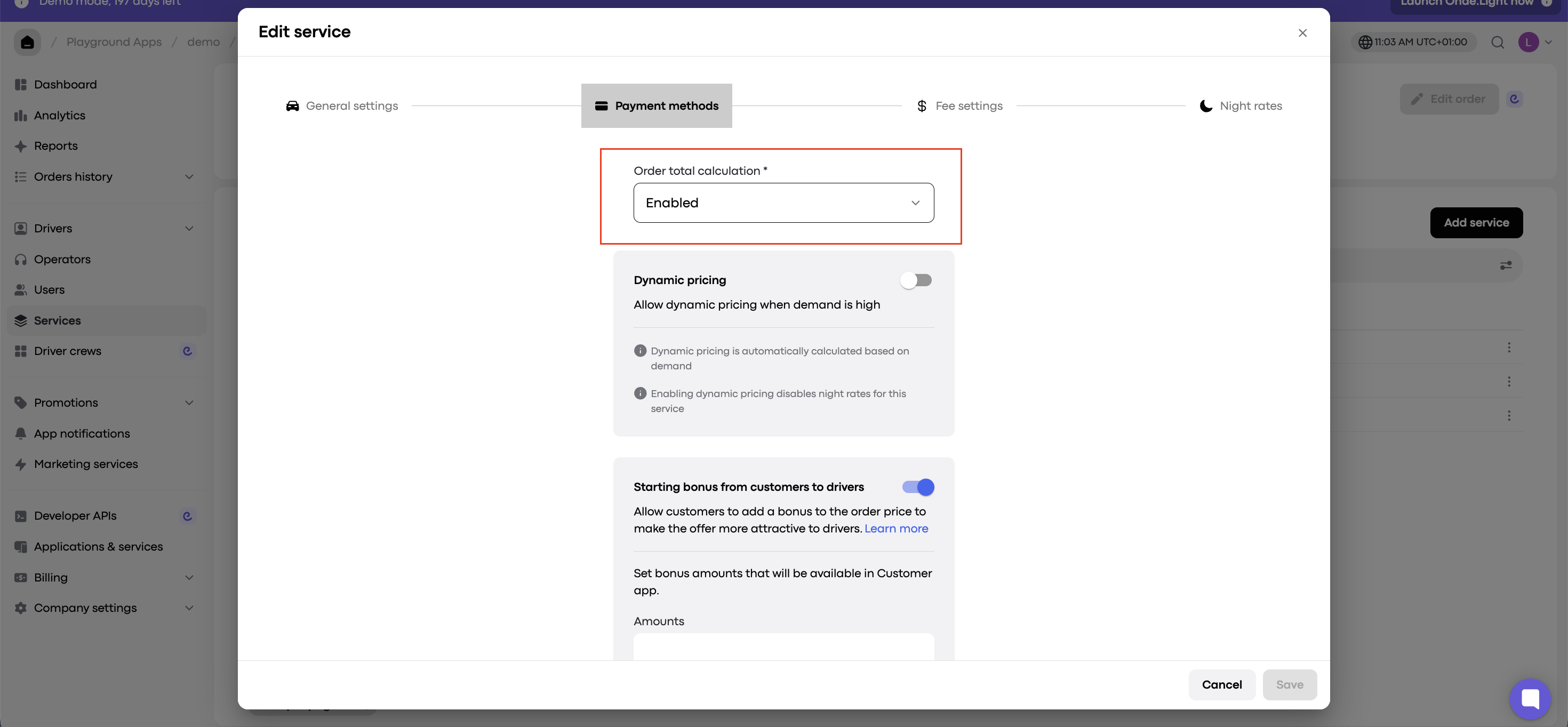
Go to Services, choose the service type, and open Payment options.
Find the Starting bonus from customers to drivers section and turn the toggle on.
Set the bonus amounts that will be available in the customer app. You can configure 3 to 5 bonuses. Whole numbers (for example, 3 or 5) and decimals (for example, 4.5) are both allowed.
Click Save changes.
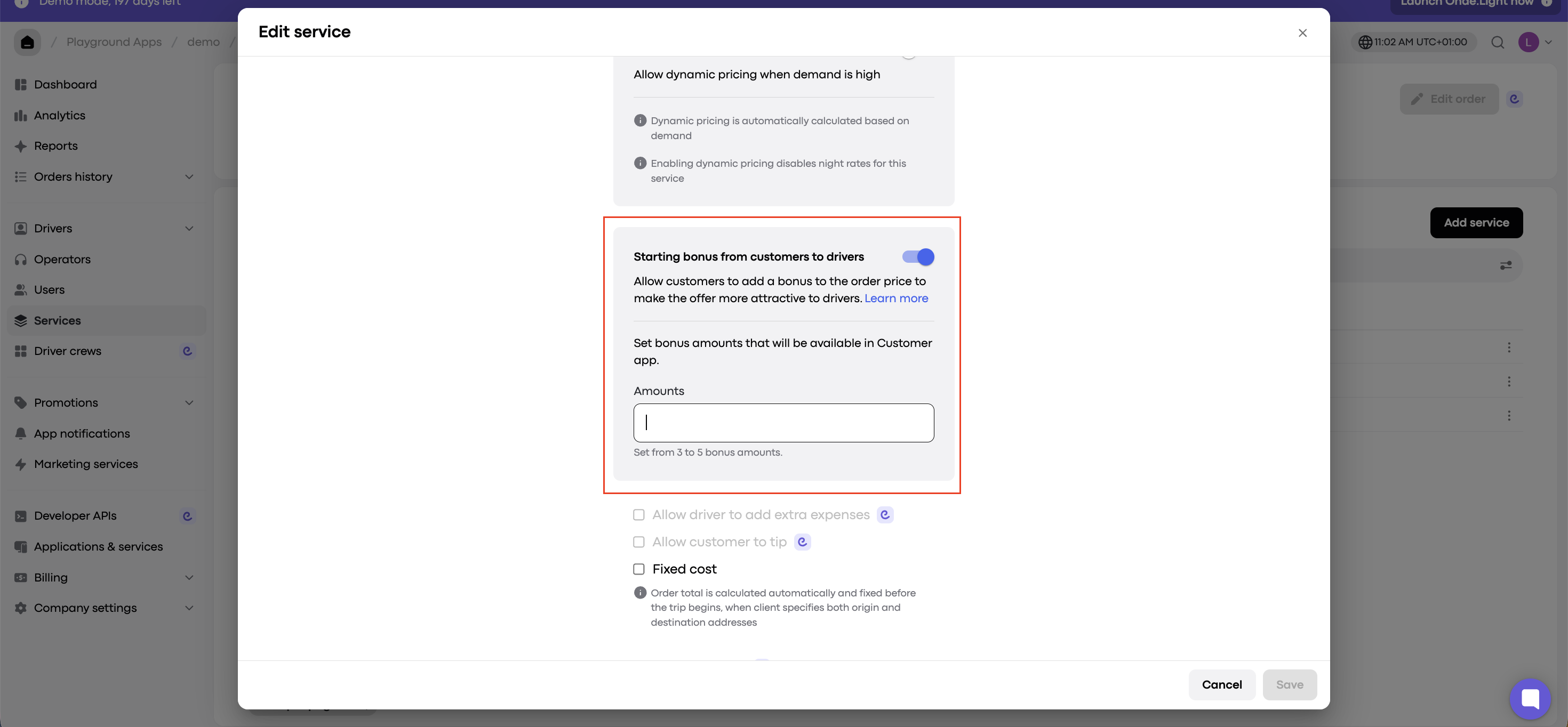
You can edit the number and value of the bonuses at any time. Once the feature is on, customers using your passenger app can add a bonus when they confirm an order.
Note: Order total calculation must be Enabled. If it’s disabled, the Starting bonus section is hidden.
Open the customer app and set up the order.
Tap Confirm order.
In the “Want to get a car faster?” pop-up, select a bonus amount, or tap Skip to keep the original estimate.
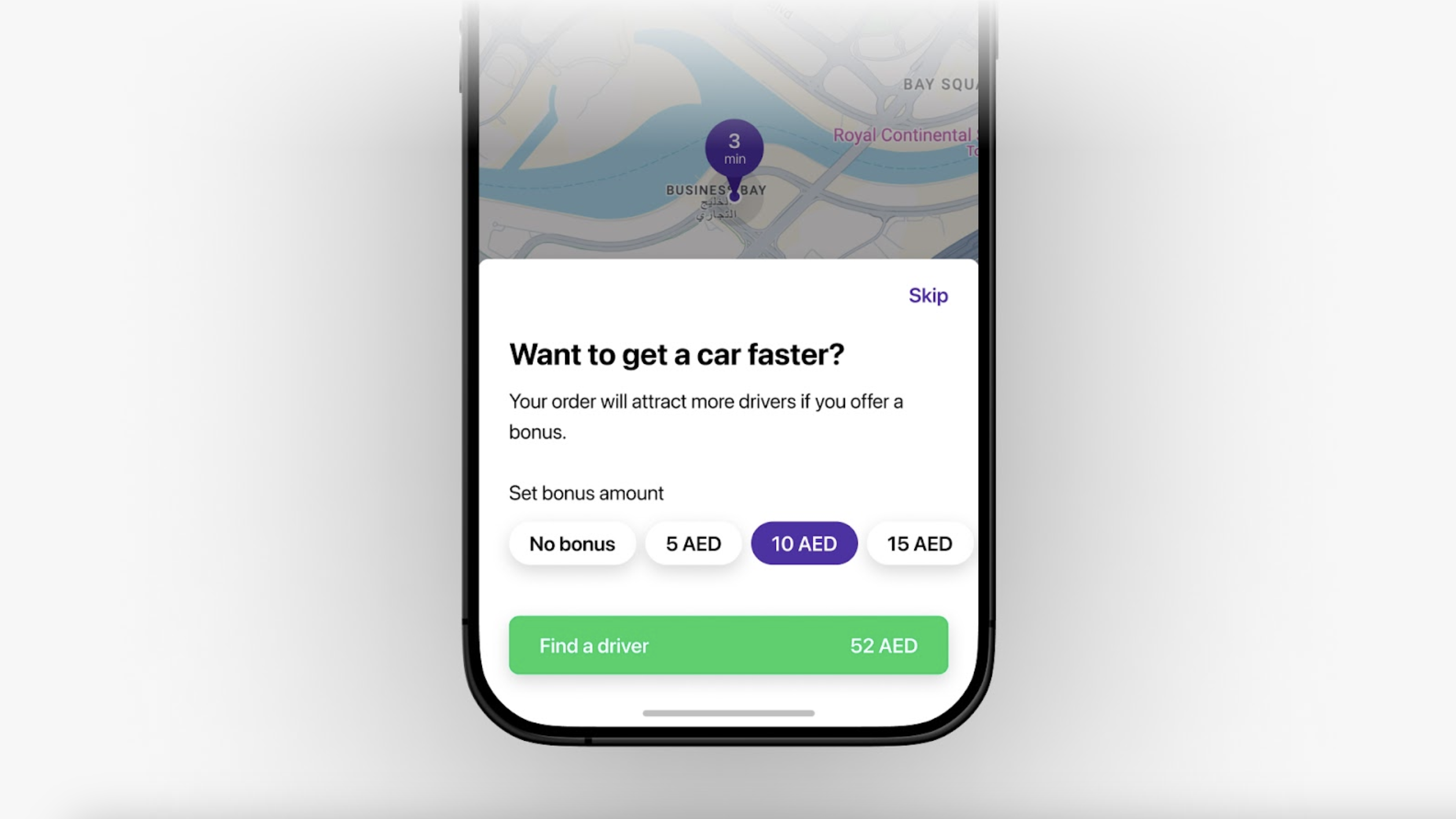
The driver sees the bonus on the offer screen, shown separately from the trip estimate to encourage them to accept the order. If the driver ignores the offer, it goes to the next driver according to the intelligent queue algorithm.
Customers can’t add a starting bonus for:
Pre-orders
Orders from the operator app
Orders from the web app
Service types with more than one service visible to customers (for example, two Classic services). If a service type has two services but only one is visible to customers, they can add a bonus on the visible one.
Similar services of two companies with overlapping areas within one brand (for example, Classic in company 1 and Classic in company 2)