In the Drivers tab of My hub, company owners can add and remove drivers and manage their subscriptions. This guide covers how to invite a driver, what to do if they don’t get the invitation SMS, and how to activate their profile.
Step 1: Start the invitation
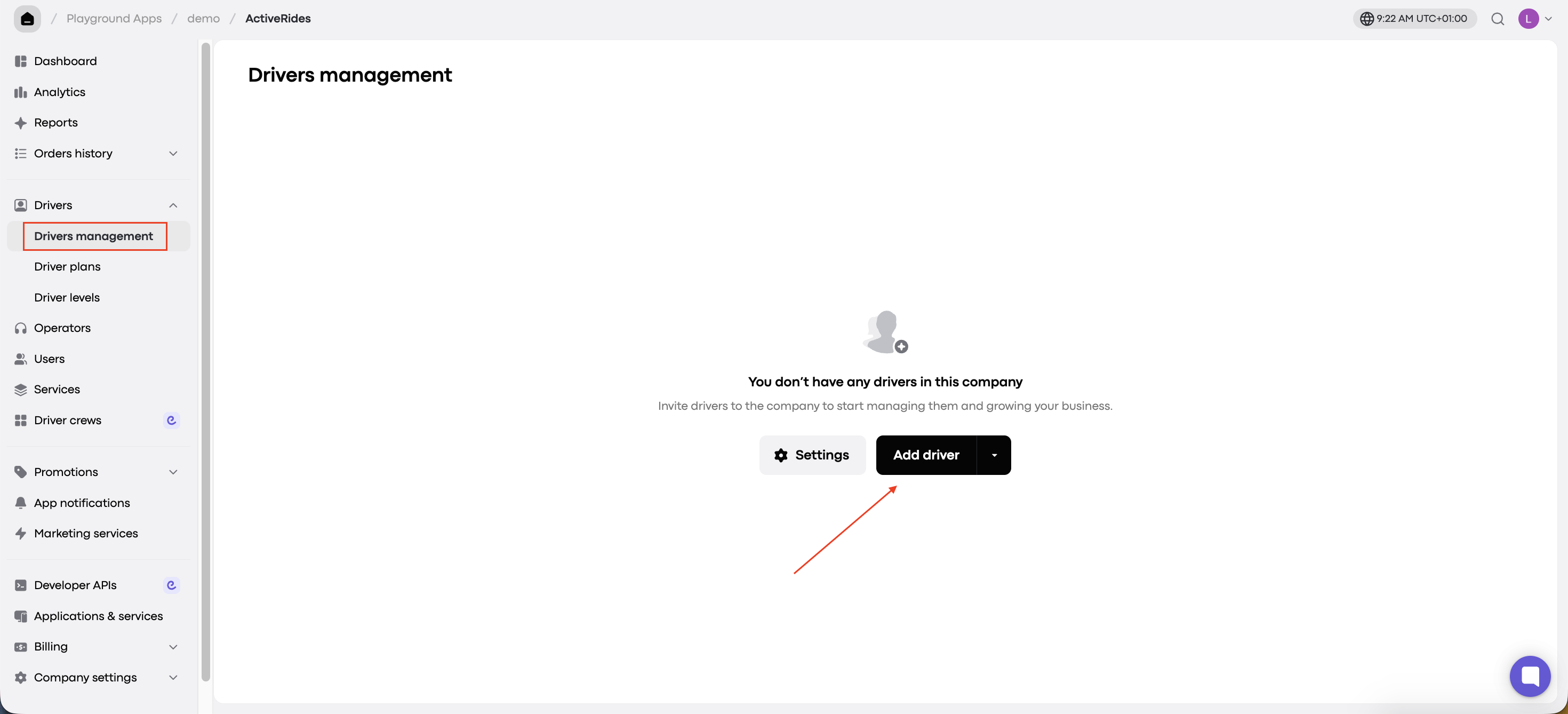
In My hub, go to Drivers > Drivers management and click Add driver.
Step 2: Enter the driver’s phone number
Fill in the driver’s phone number. You can also subscribe the driver to a driver subscription plan. Then click Add.
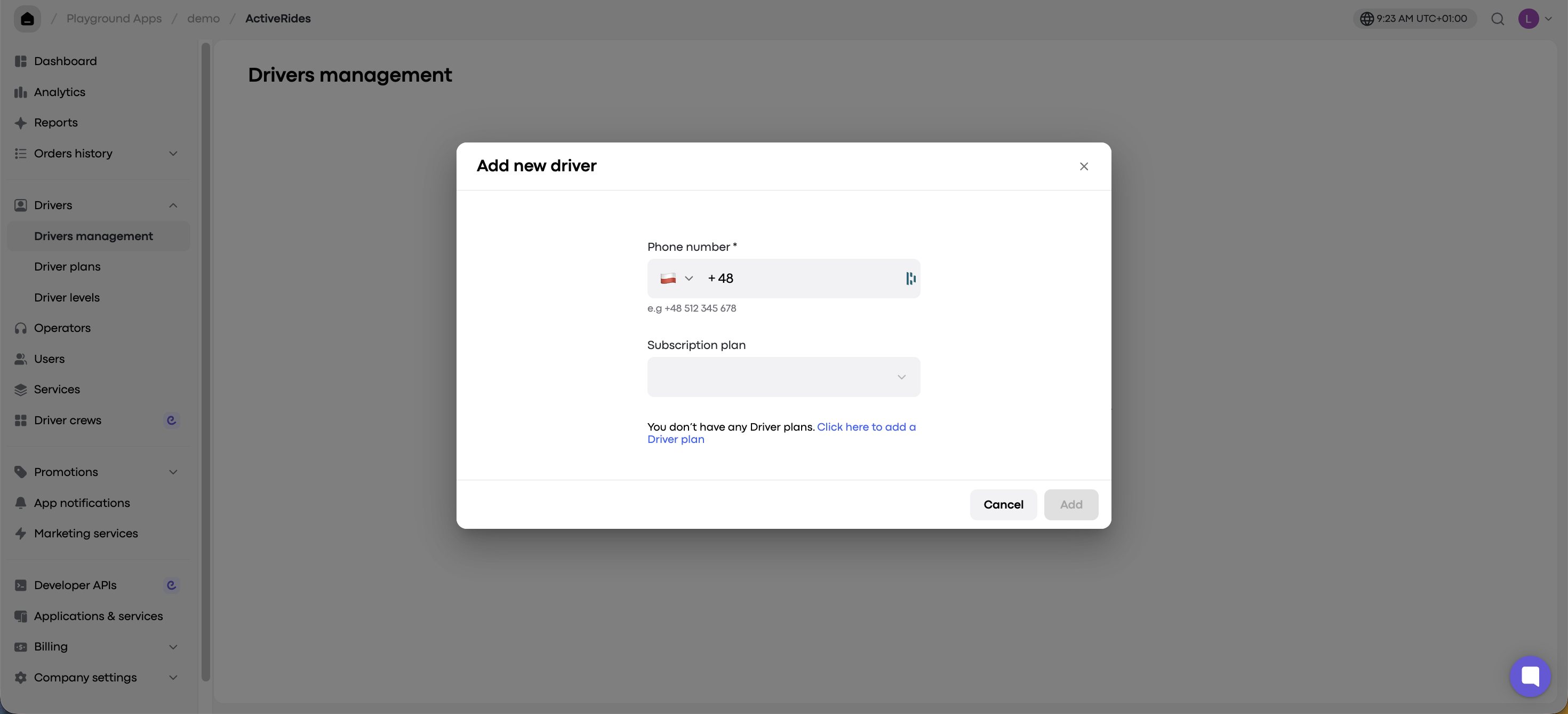
The driver is now invited, and an invitation SMS is sent to the phone number you entered.
Step 3: The driver completes registration
The driver downloads the driver app using the links in the SMS, completes all the profile registration steps, and submits the profile to your company for review. After submitting, the driver sees a confirmation notification.
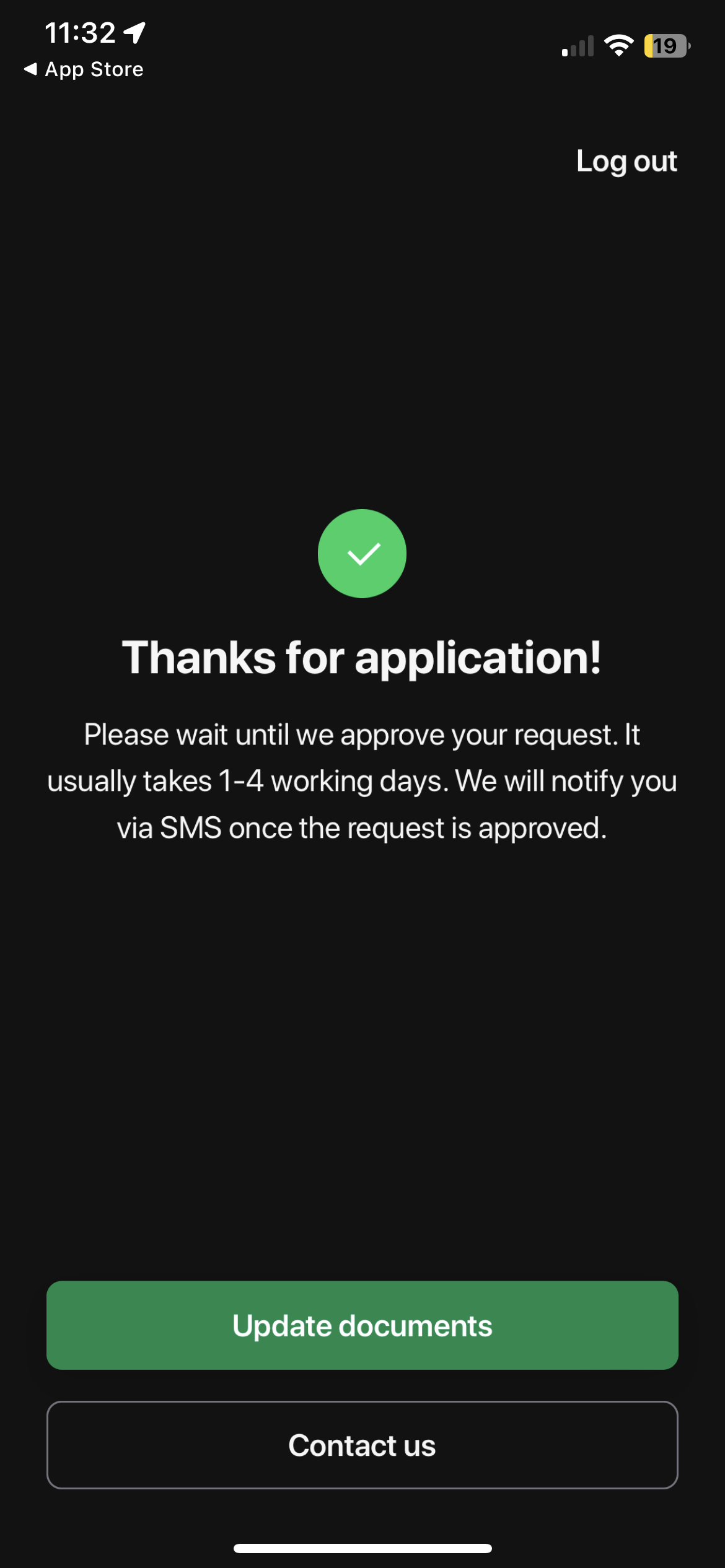
The driver then waits while your company reviews their details, assigns the service type, and activates the profile.
When a driver submits their profile, they appear in My hub with the status Waiting for activation. To activate them:
Go to Drivers > Drivers management.
Click the driver with the status Waiting for activation.
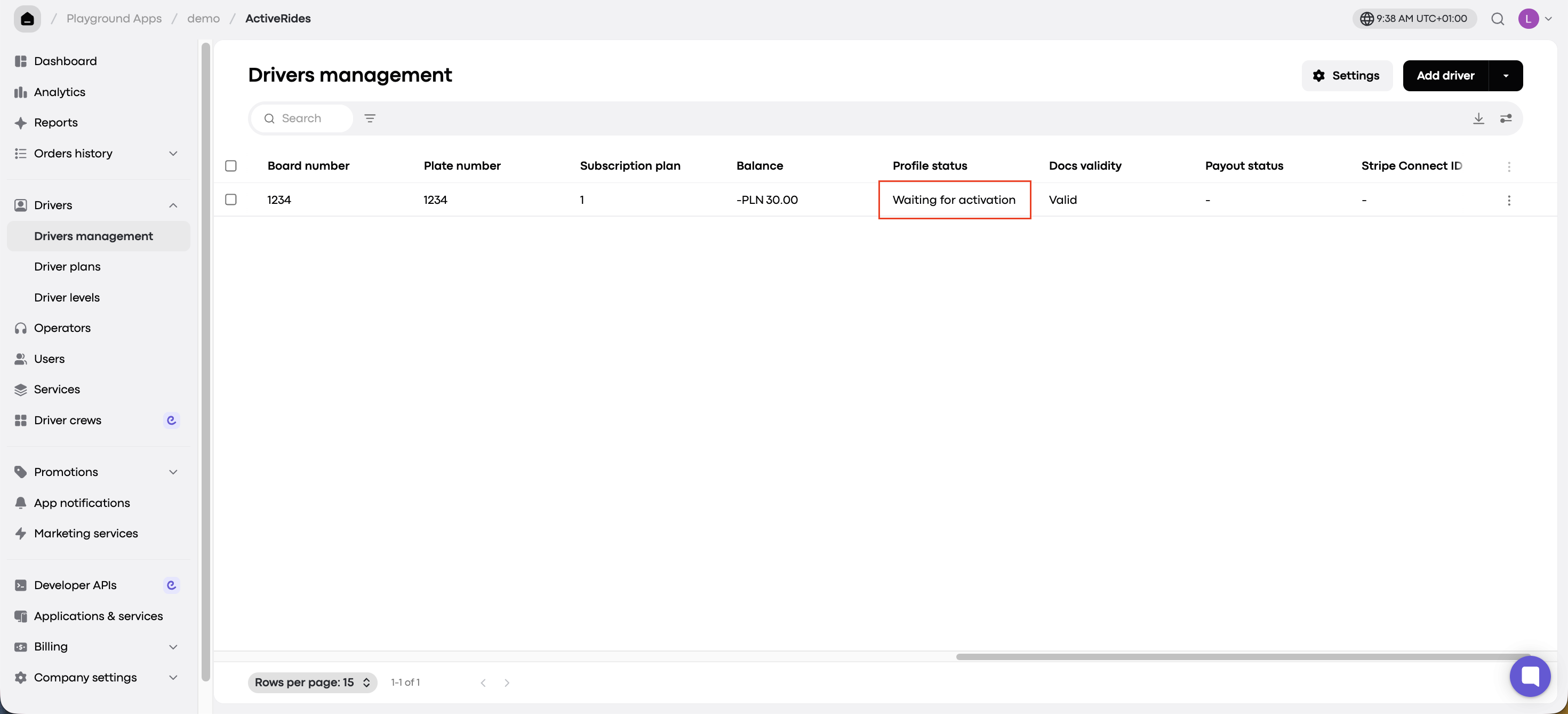
Review their profile details.
Assign a service type (for example, Economy or Standard).
Change the profile status from Waiting for activation to Active and click Save.
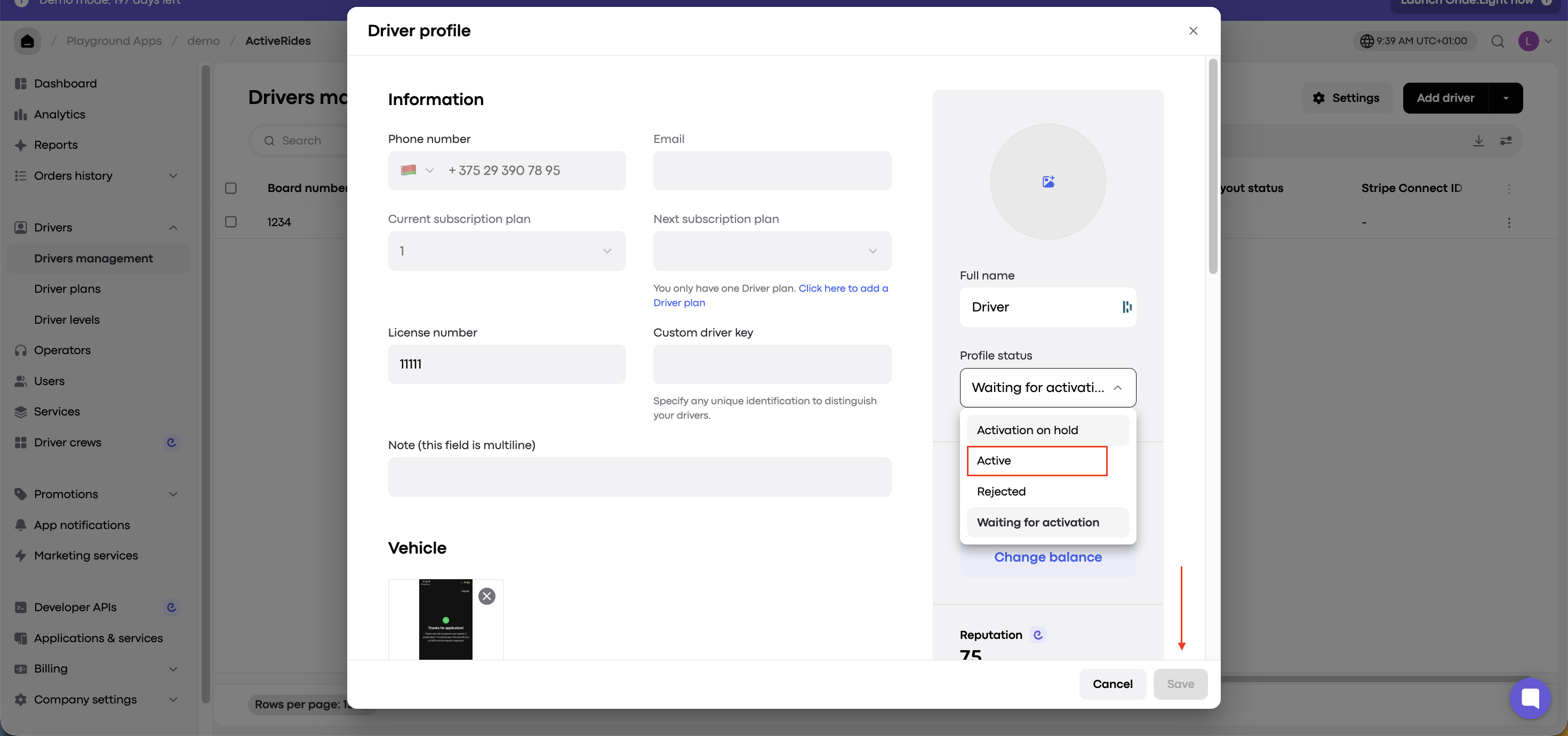
That’s it! The driver is now fully registered and ready to receive orders.
If the SMS didn’t arrive, the driver can still join your company. Their phone number is already added to your My hub account, so they only need to register with it.
What the driver should do:
Download the driver app (search for Onde Driver App):
Start registration using the same phone number you added in My hub.
Complete all the registration steps and submit the profile.
Once registration is complete, the driver appears in My hub with the status Waiting for activation. You can then activate them using the steps above.