Driver settings let you configure how your drivers use the platform. They apply to your whole driver fleet, regardless of service.
In My hub, open the Company management tab.
Go to Drivers > Drivers management.
Click Driver settings in the top right corner of the screen.
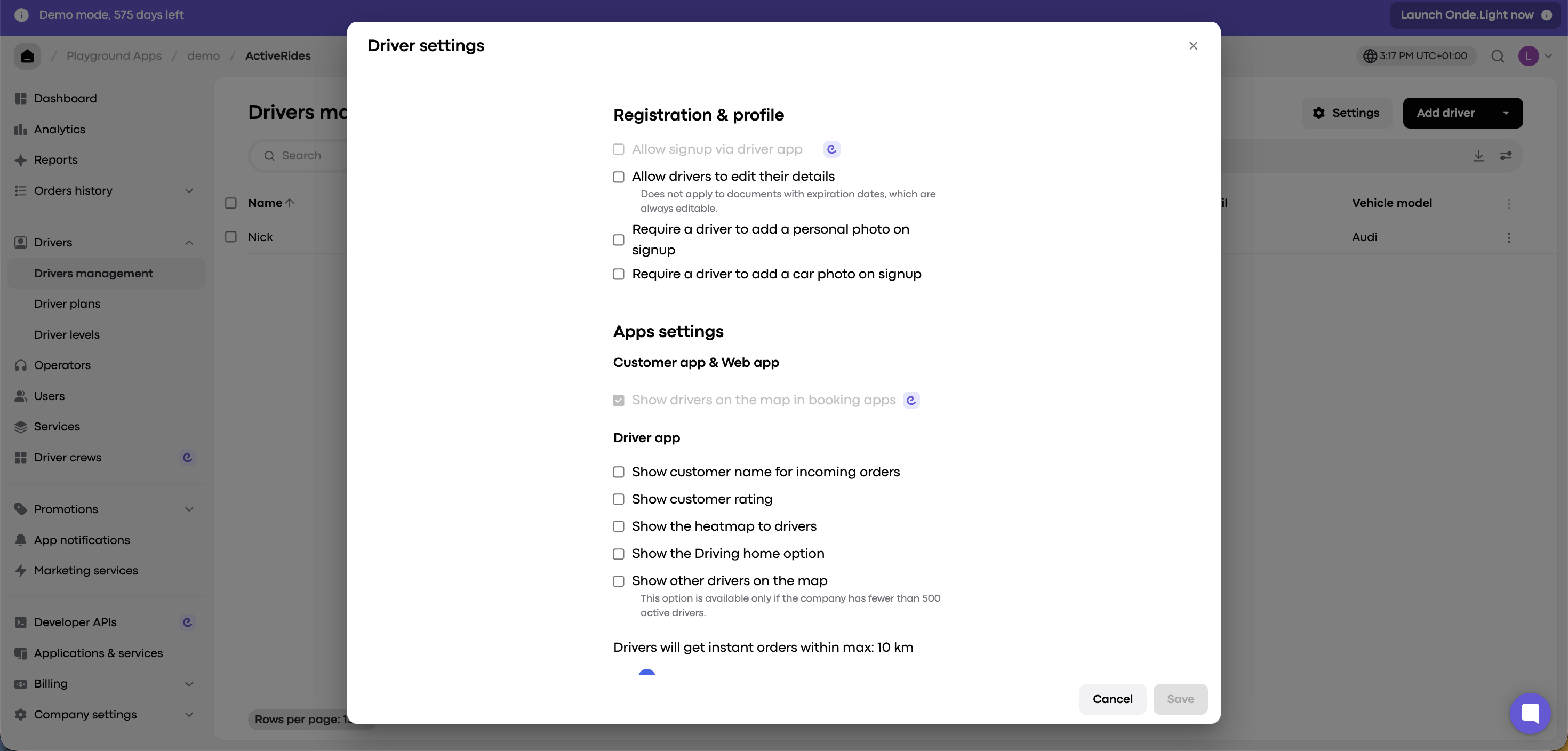
When this option is off, drivers can’t edit these details in their Work profile:
Name
Photo
License number
They also can’t edit their phone number and email in Personal information. They can still edit their name and photo in Personal information, but this doesn’t change the Work profile, which is what your company and customers see.
When enabled, drivers must add a personal photo when they register their profile.
Note: Driver and car photos are stored in My hub. Company managers can review and update both.
By default, the minimum balance a driver needs to take jobs is 0. You can set any positive or negative figure as the minimum. When a driver’s balance runs low, they see an alert to add credit.
When Always allow drivers to take jobs is enabled, drivers can take jobs with any balance.
The heatmap shows “hot order zones” in your working area. When this option is on, drivers can see zones where demand exceeds the number of available drivers and move there accordingly.
The maximum driver radius defines each driver’s working area. Drivers receive ASAP jobs only if the pickup is within their working radius. Drivers can reduce their radius directly in the app.
Set a sensible radius so drivers don’t receive jobs far from their location.