When you register in My hub, your account starts in a 14-day demo period. During this time, you can explore Onde.Light, test the features, and understand how the platform works.
🔔 Important: Demo mode is only for testing. It does not reflect your real business activity. You will not see your actual drivers, real orders, earnings, or live company data there.
Ready to go live?
When you switch to Product Mode, you start working with your real company operations in Onde.Light.
This is where you manage actual drivers, receive real orders from passengers, track earnings, and run your business on the platform. Here’s how to move from Demo Mode to Product Mode quickly and easily.
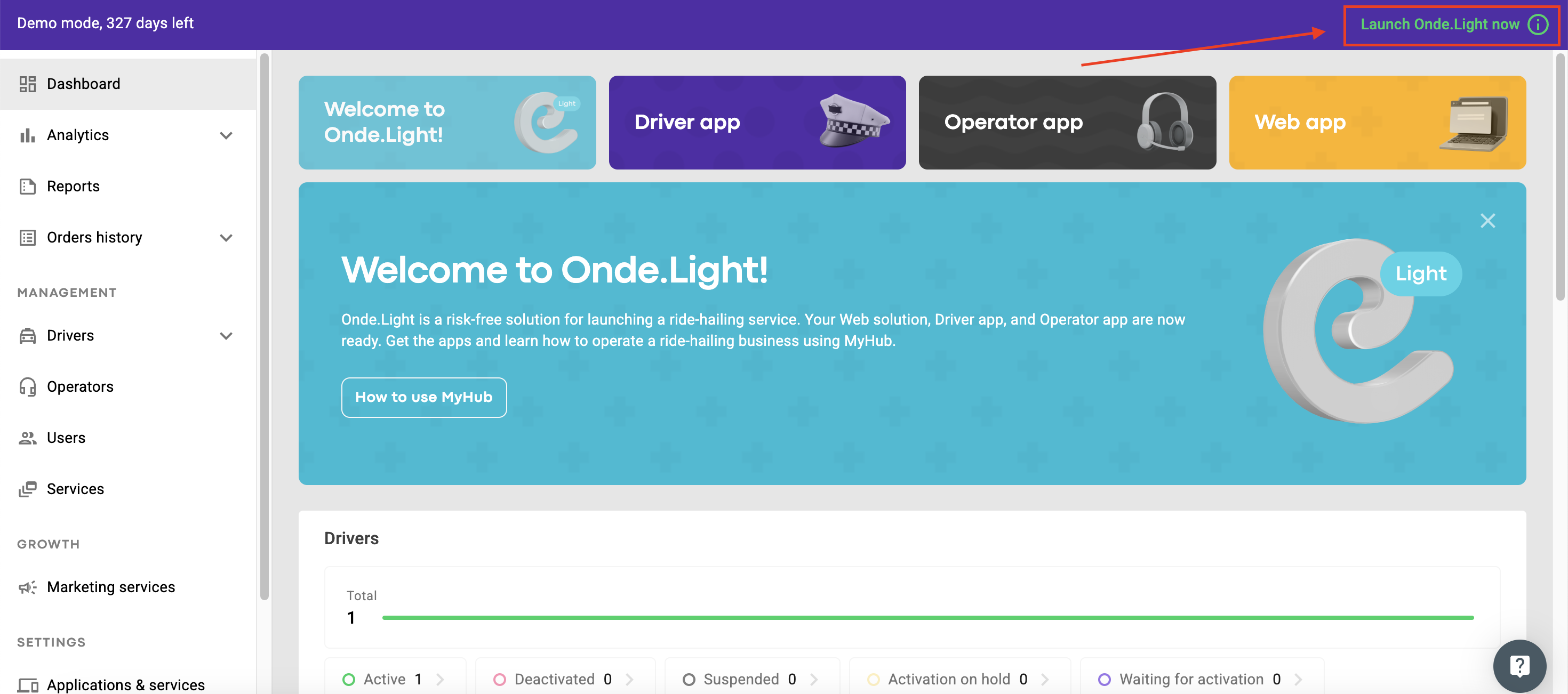
Go to My hub and click the “Launch Onde.Light now” button in the top-right corner of the screen.
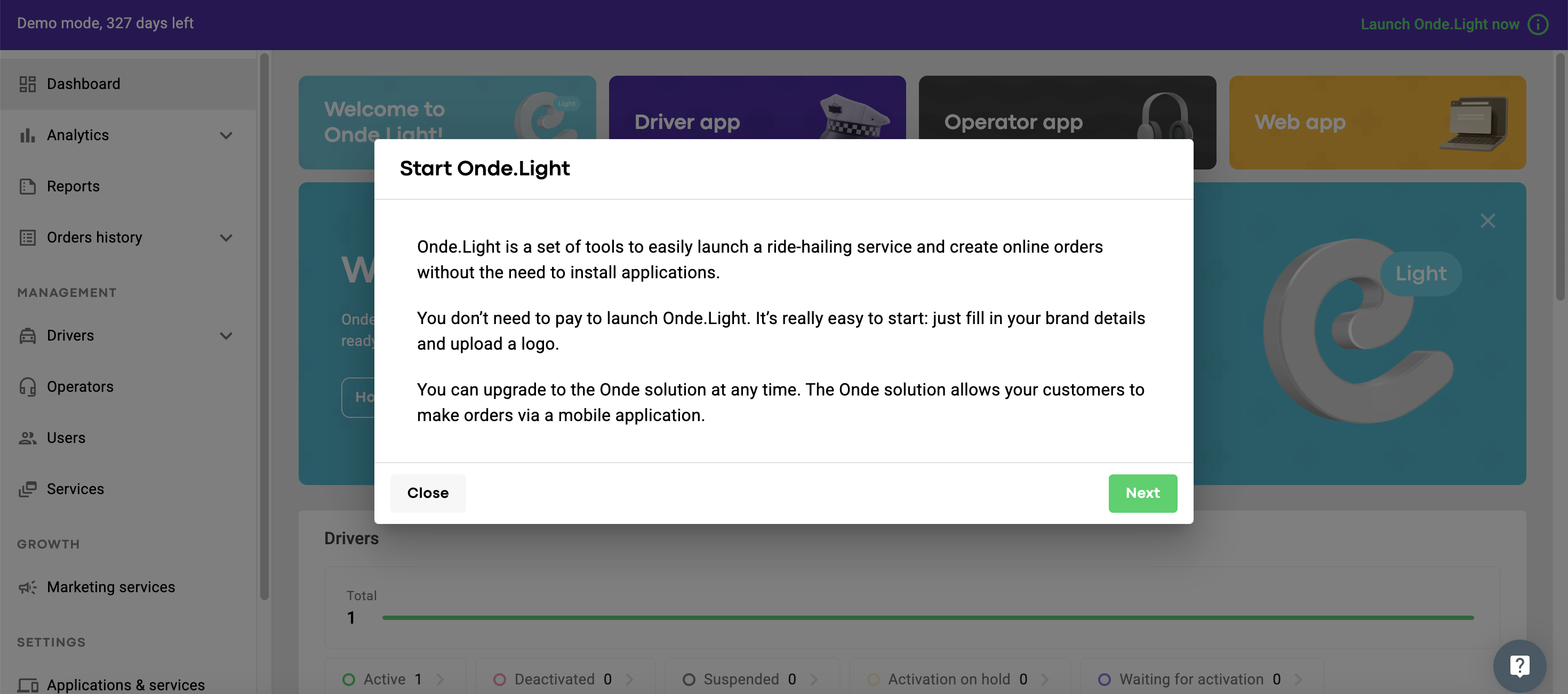
A pop-up window will appear. Click Next to continue.
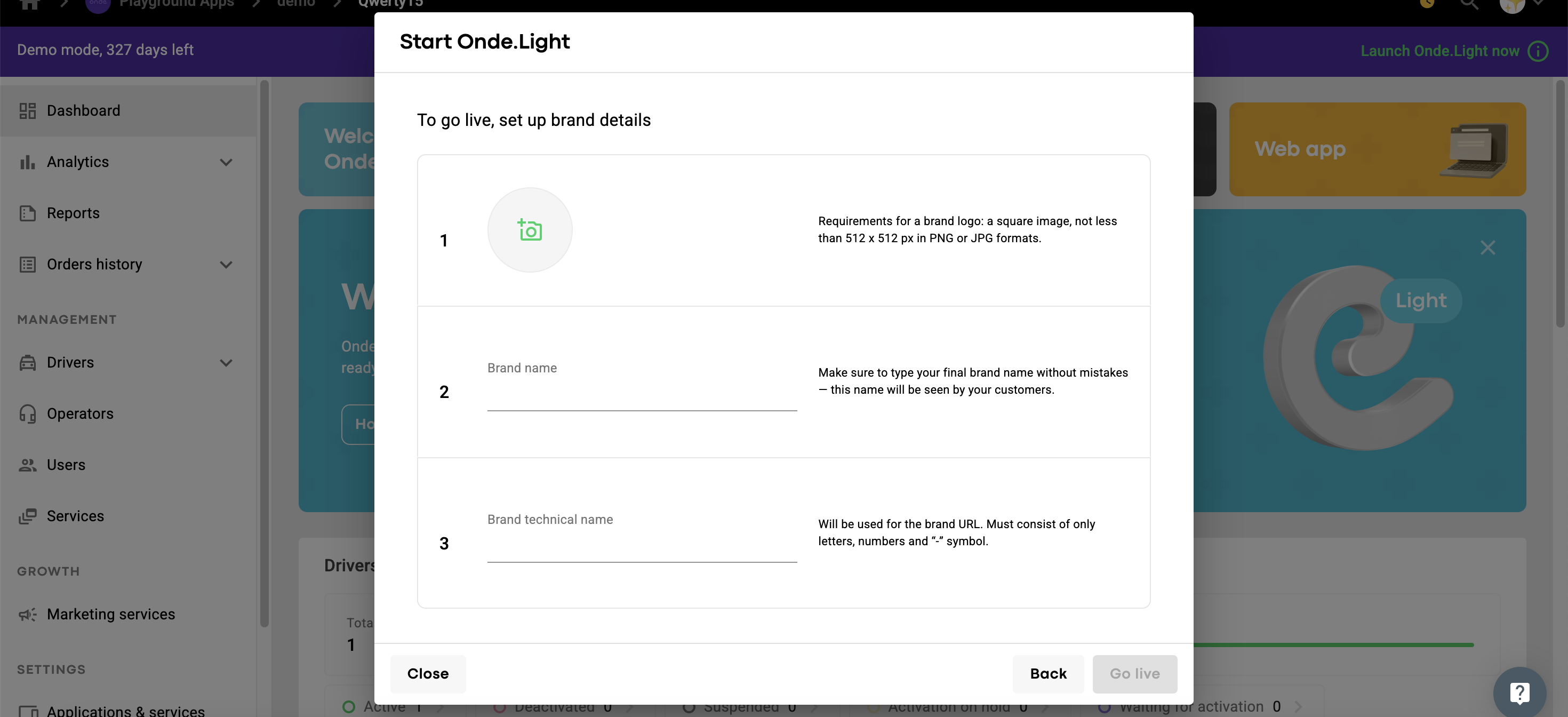
Brand logo: Upload a square image (at least 512 × 512 px) in PNG or JPG format.
Brand name: Enter your brand name exactly as you want it to appear to customers.
Brand technical name: This will be part of your platform’s URL. Use only letters, numbers, and hyphens (-).
When everything is ready, click “Go live” to confirm your setup and activate your company.
That’s it! Your platform is now in Product Mode and ready for real operations.