
A night rate lets you charge different fares during specific times, days, or dates. You can add one to any service, either when you configure a new service or later for an existing one.
You can also add several night rates to the same service and give each a custom name, such as “Weekend,” “Rush hour,” or “Holiday rate.” The name shows which period the rate applies to.
How to Set Up a Night Rate
In My hub, open the Services tab.
Open the service you want to add the night rate to.
Click the Night rates subtab.
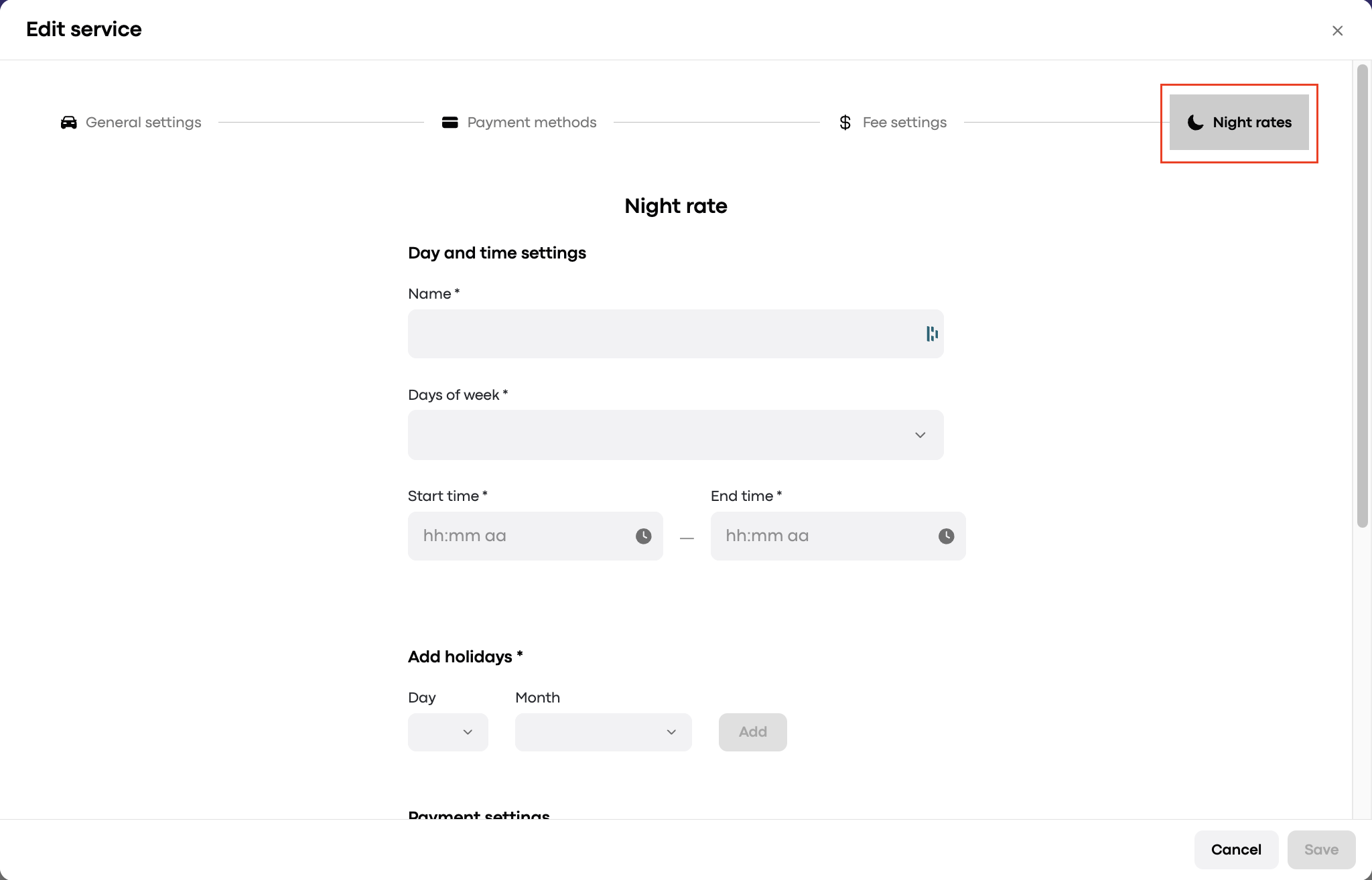
Name the night rate.
Select the days of the week the rate applies to.
Set the rate period with a Start time and End time.
If needed, link specific holidays to the rate.
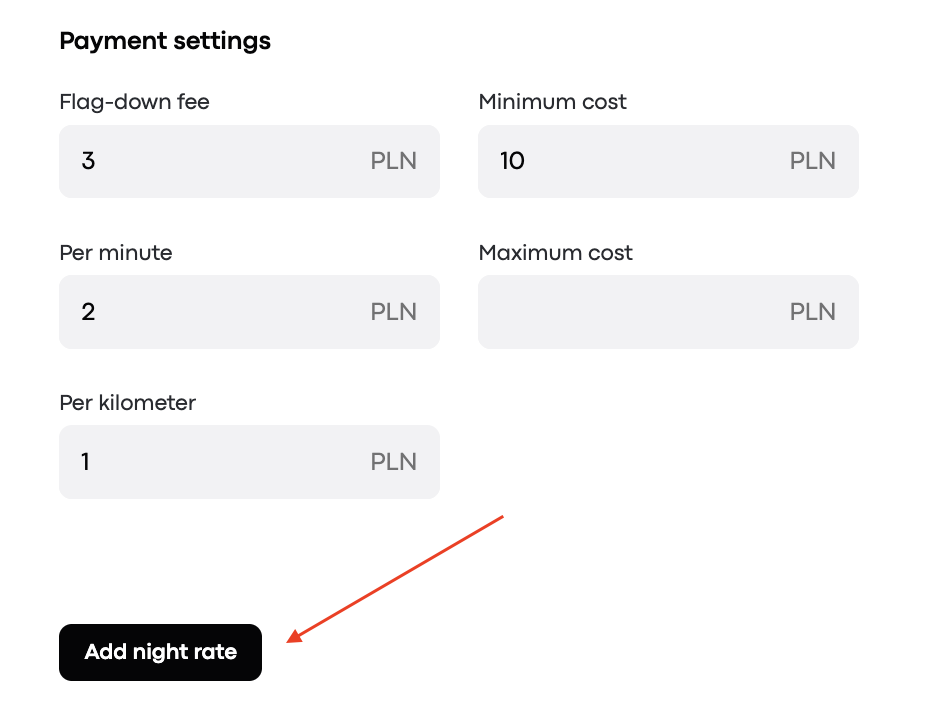
Fill in the Payment settings that apply during this period:
Flag down fee
Price per minute
Price per km
Minimum cost
Click Add night rate.
Click Save to activate the rate.
When Night Rates Don’t Apply
Night rates don’t apply if fixed rate zones are set for your company and the drop-off location is defined.