Dynamic Pricing is an automated fare adjustment feature that increases or decreases ride prices based on real-time factors such as demand, traffic conditions, and driver availability. It ensures fair compensation for drivers while boosting service availability during peak hours.
This feature is commonly used in leading ride-hailing platforms.
During times of high demand, drivers using multiple platforms tend to prioritize rides with higher fares to maximize their earnings.
✅ Increase Completed Orders & Revenue
When demand is high, fare adjustments motivate more drivers to accept rides, reducing cancellations and increasing the number of completed trips—directly boosting company revenue.
✅ Enhance Driver Loyalty
Market-responsive pricing allows drivers to earn more during peak hours. This leads to increased engagement, reduced idle time, and improved retention.
✅ Improve Customer Experience
Dynamic pricing reduces “no driver found” incidents and rejected requests, resulting in shorter wait times and more reliable service, even during rush hours. Dynamic pricing is a strategic tool that helps platforms stay competitive by supporting both drivers (higher earnings) and passengers (greater availability).
You can enable and configure this feature for orders created via the Web booking app and Operator app. Follow these steps in your admin panel:
1⃣ Go to My hub → Services
Navigate to the Services section in My hub and select the service type where you want to apply dynamic pricing. Then go to Payment methods.
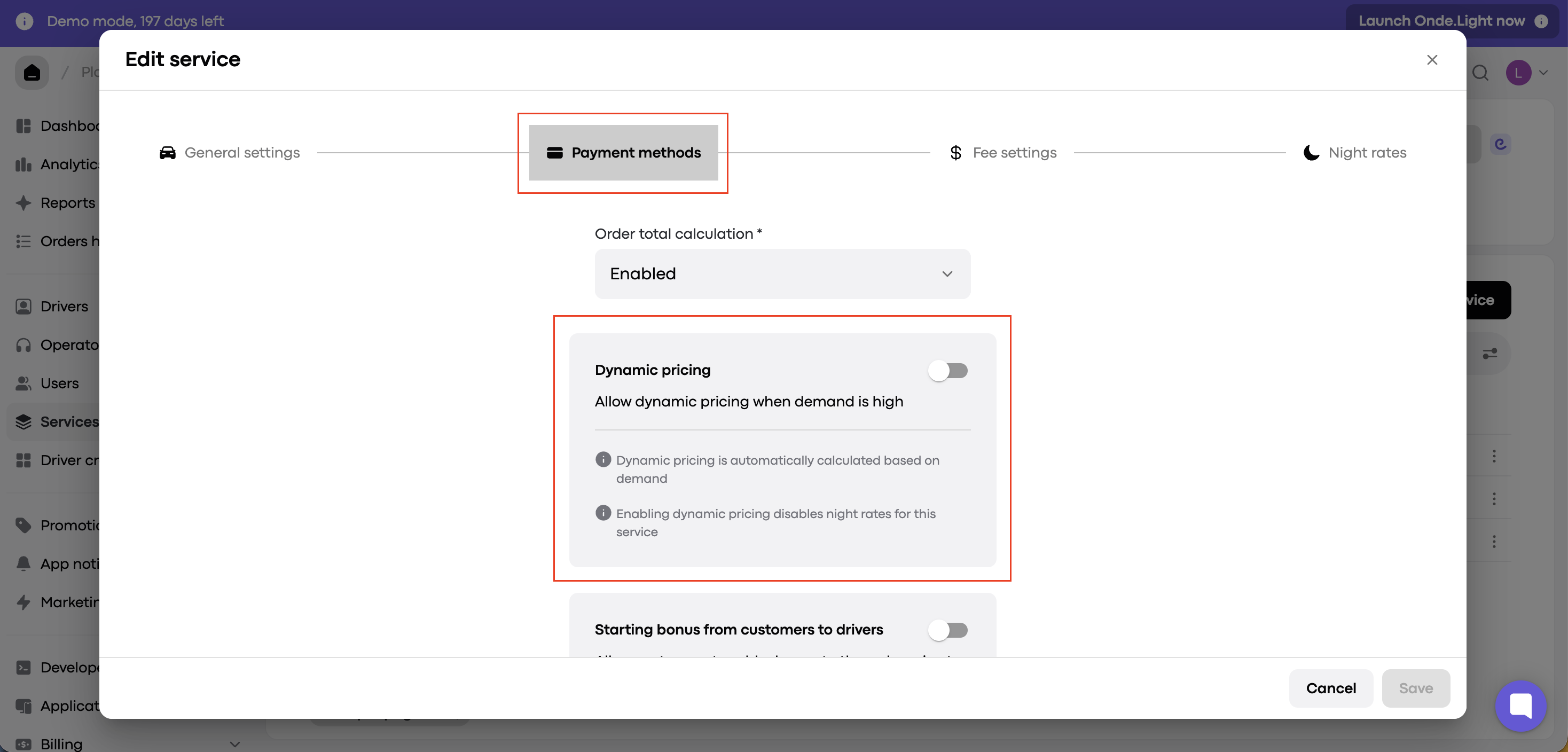
2⃣ Enable the Dynamic Pricing Feature
Find the Dynamic Pricing section in the settings.
Toggle the switch to activate this feature.
3⃣ Set the Coefficient Range
Define how much the fare should increase during peak demand.
The coefficient determines multipliers applied to the base fare, time, and distance rates.
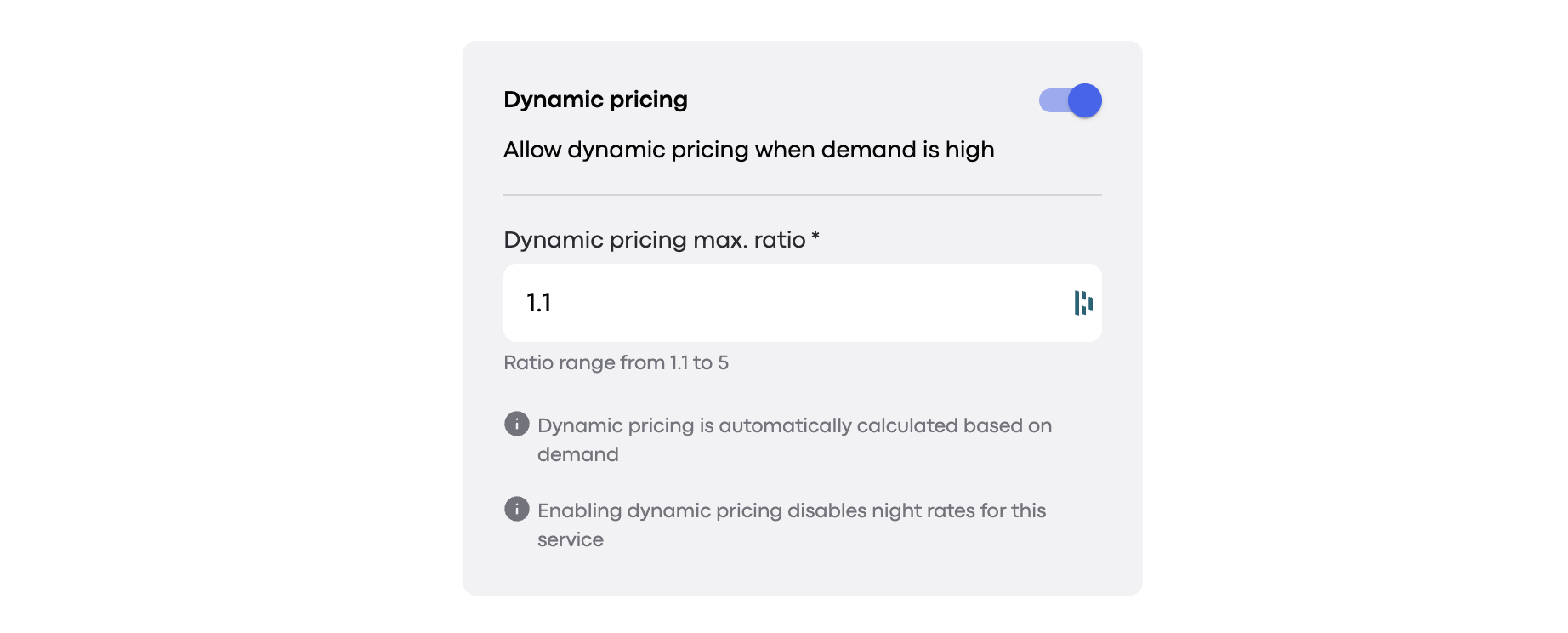
How the Coefficient Works:
The coefficient is calculated per company hexagon every 6 minutes, only if recalculation conditions apply.
Recalculation starts if ≥ 2 orders are initiated within a 6-minute window in the same hexagon.
Once triggered, the system measures initiated vs. accepted orders and average customer wait time to determine if the coefficient should increase or decrease.
Adjustments happen incrementally by ±0.1 steps.
The coefficient will adjust only within the defined minimum and maximum limits.
4⃣ Save Your Settings
Once all adjustments are made, click Save to apply the changes.
Dynamic pricing works with taximeter for:
Estimated cost
Fixed cost
Dynamic pricing does not work for:
Fixed-rate zone orders
Orders with a Special Cost set from the Operator App
Disabled order cost calculation
Pre-orders
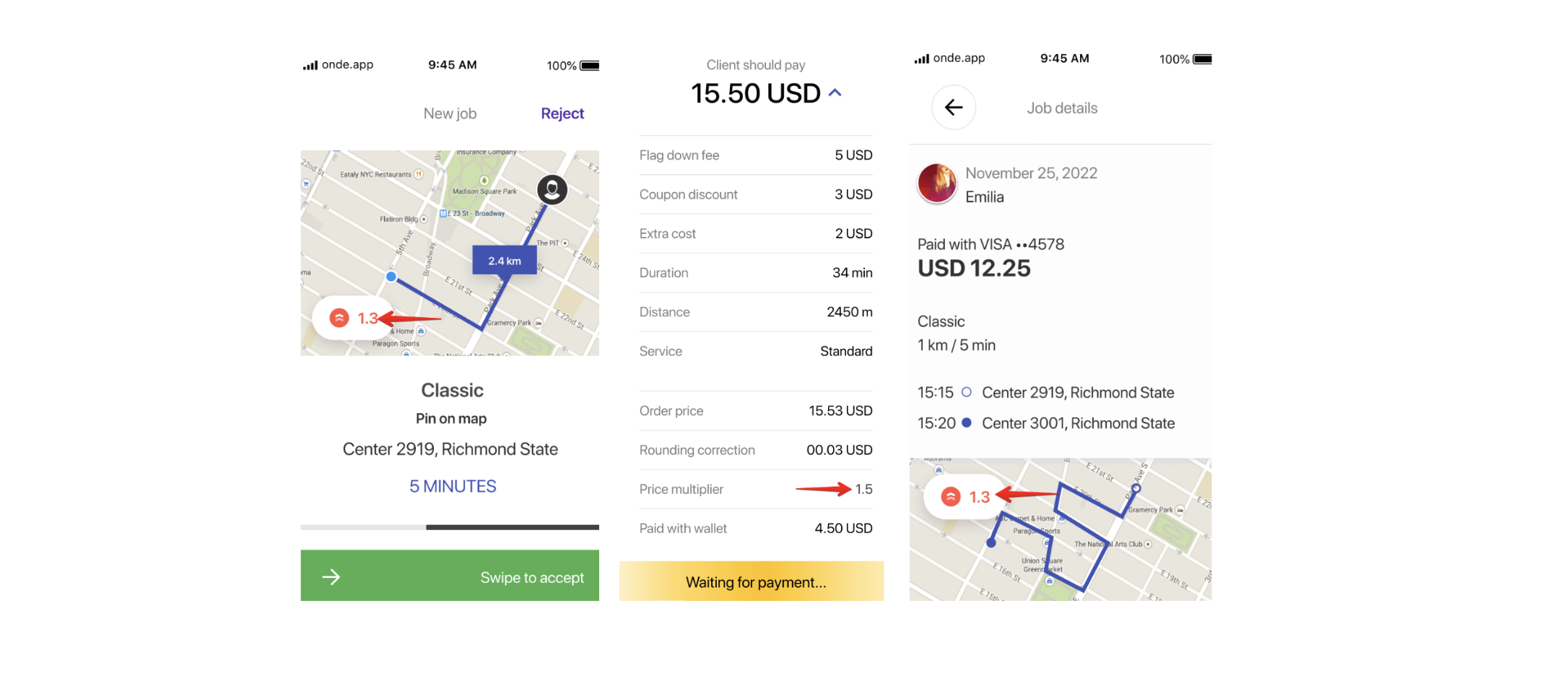
Dynamic pricing in the Driver app:
Dynamic pricing in the Operator app:
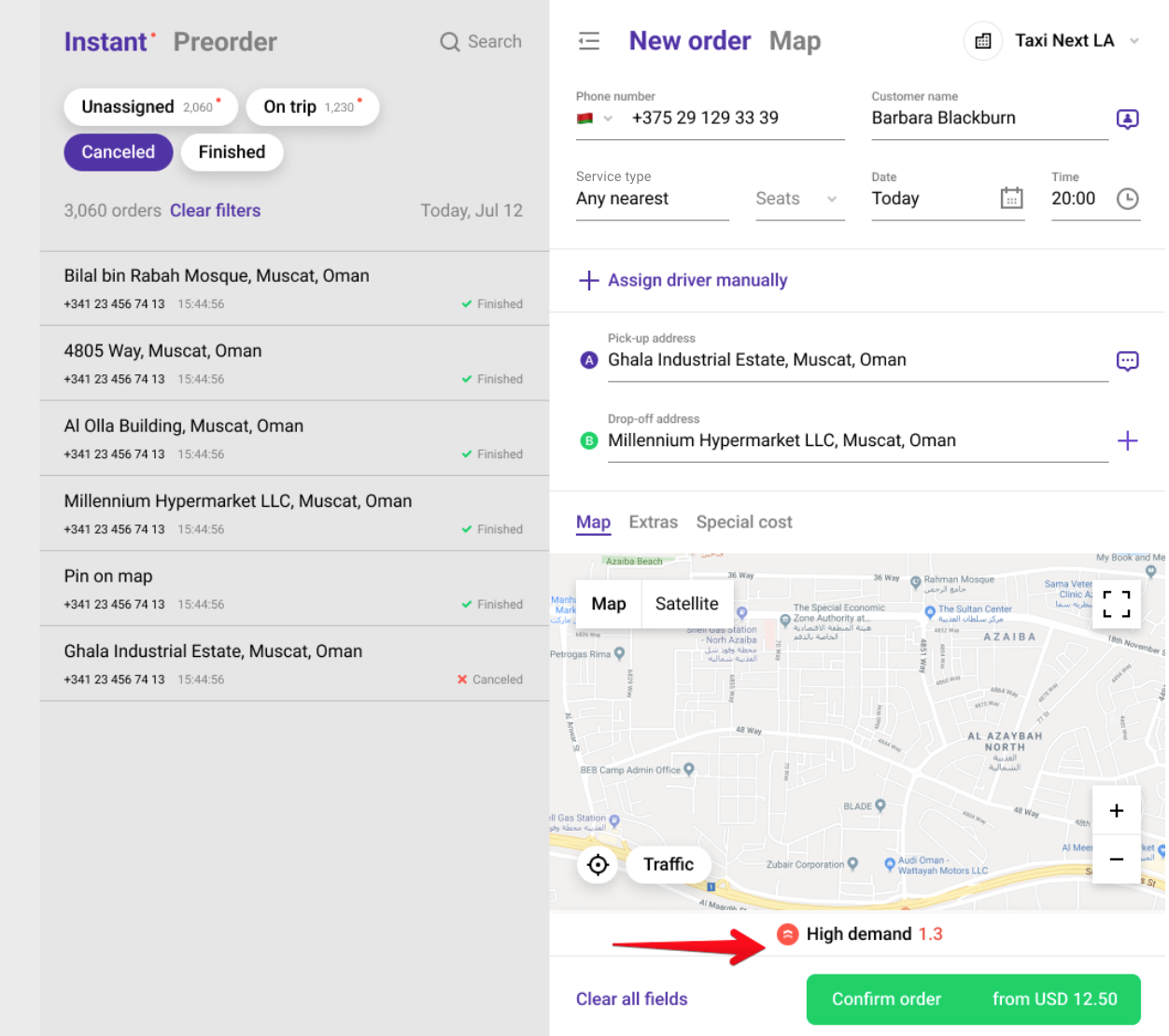
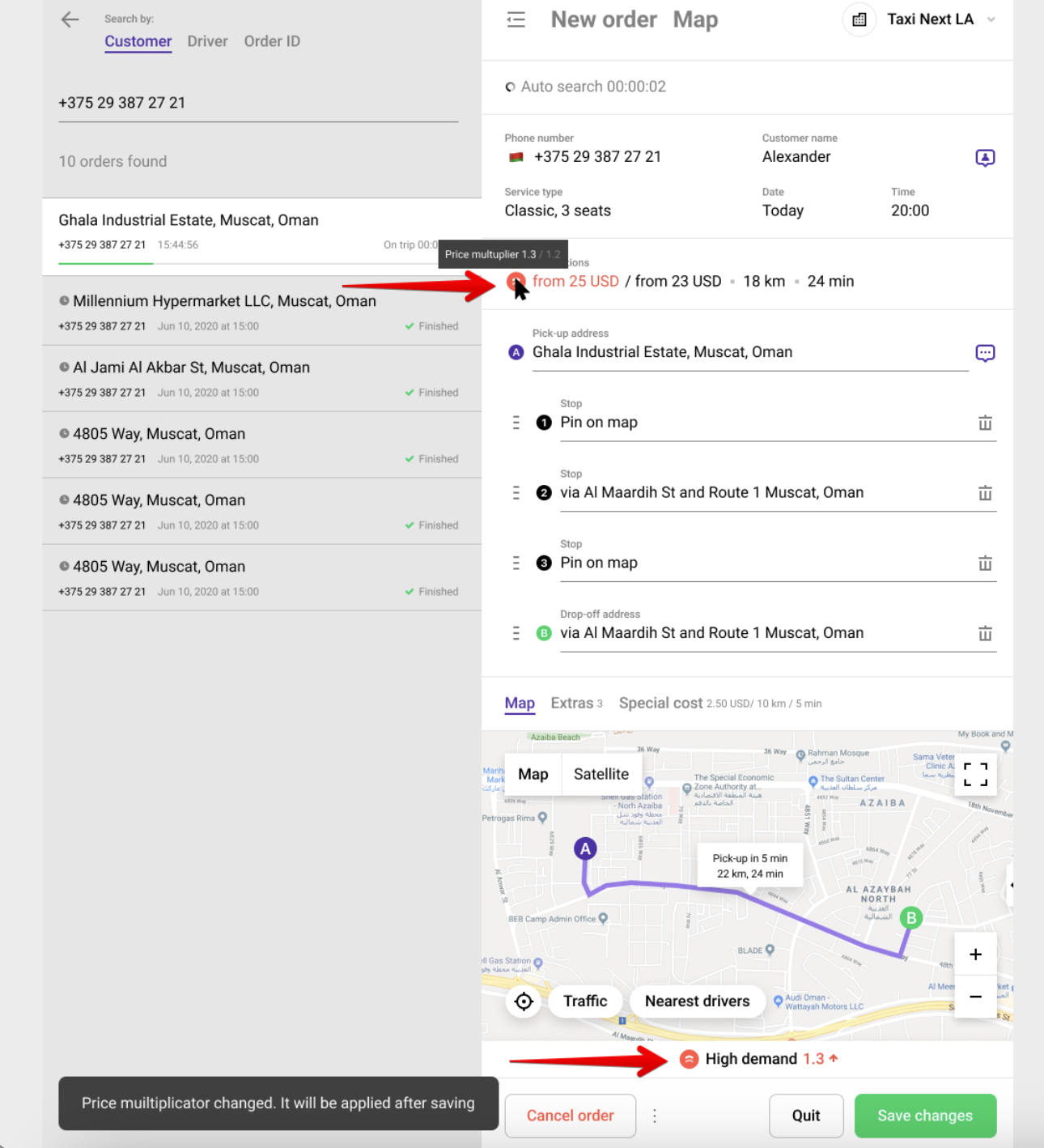
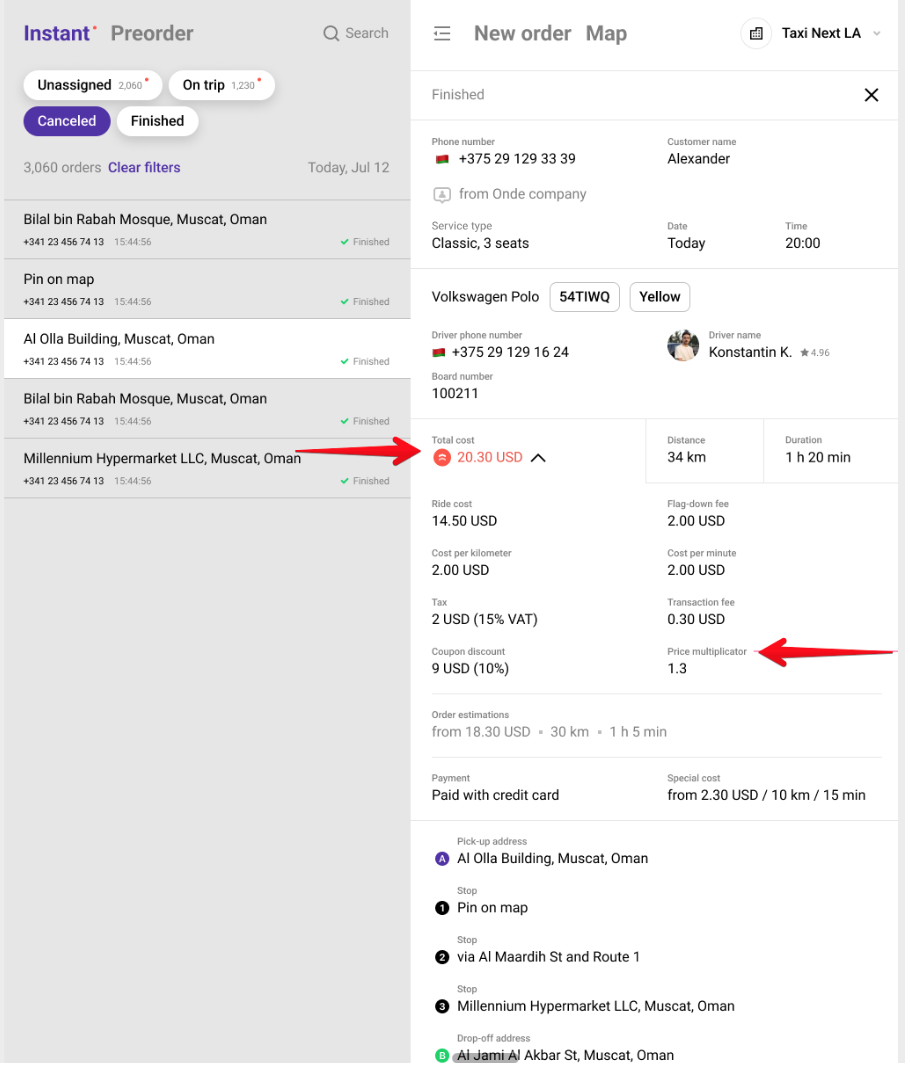
👆Notes: If an operator edits a dispatched order (e.g., reassigns a driver, changes pick-up point, or updates service type), and the coefficient at the time of the edit is different from the initial one, it is updated as well.